
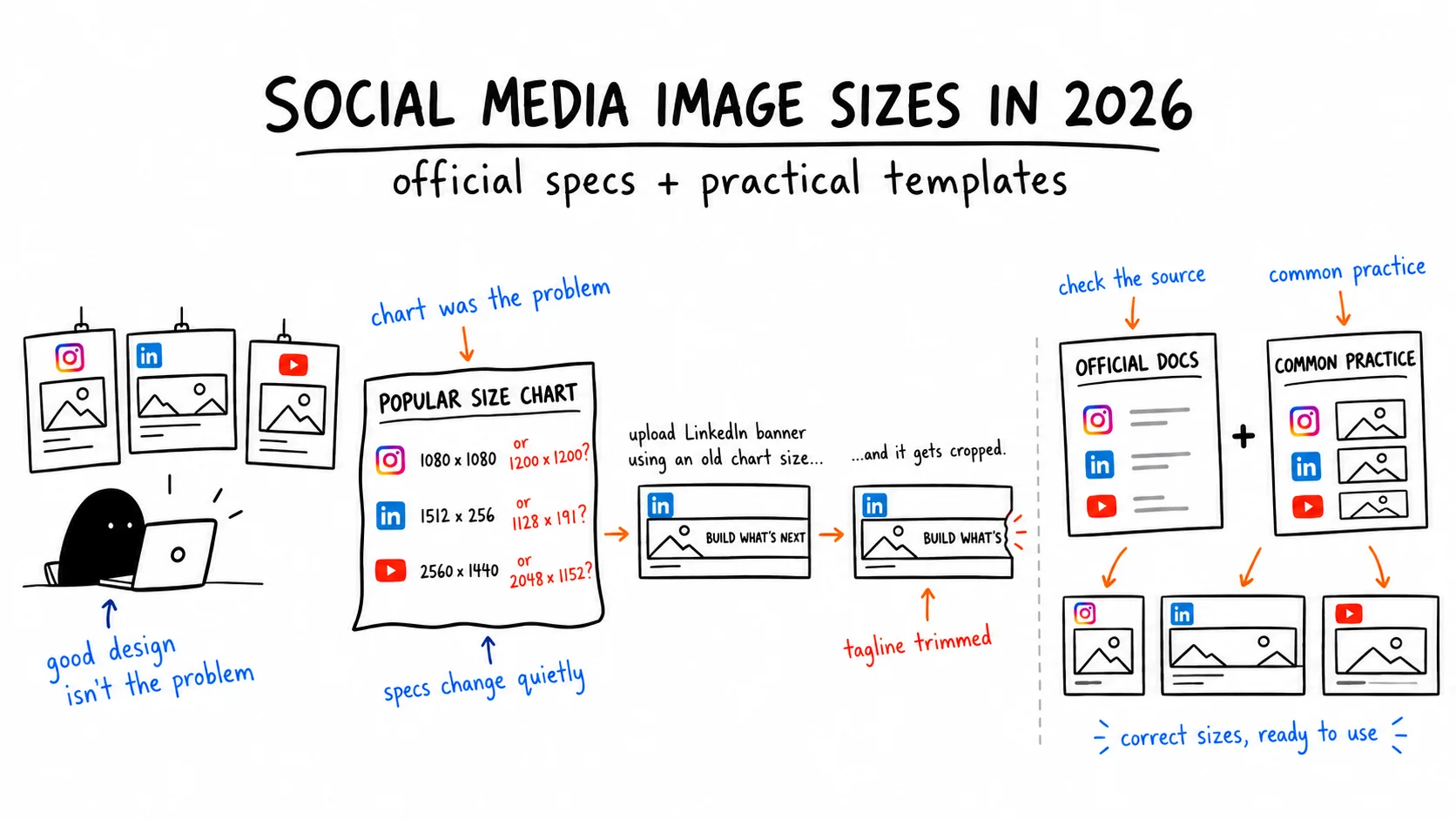
Nobody looks up a social media image size because they enjoy it. They look it up because they want to stop thinking about it, which is exactly why the first chart that looks confident tends to win. A number in a clean table on a familiar site feels verified. Often, it was just not recent.
That is how a LinkedIn banner exported at a “recommended” size ends up with its tagline trimmed: the design was fine, the chart looked trustworthy, and the number was out of date. This guide treats every size as a claim that needs a source. It separates platform requirements verified against official documentation from practical templates, common workflows, and independent testing.
The Short Answer: The Sizes Small Teams Use Most
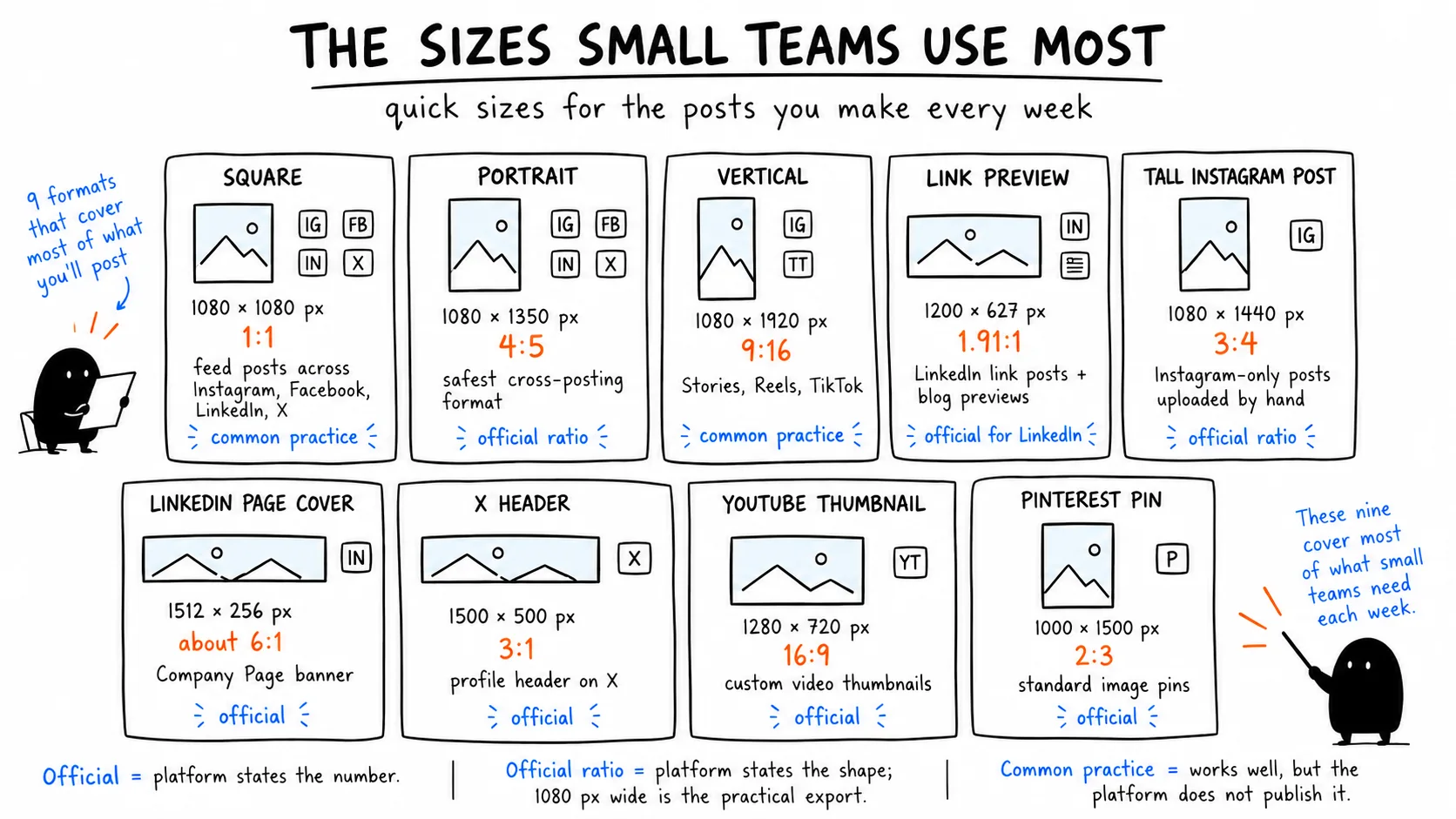
Need a size in the next five minutes? This table covers most of what a small team publishes in a normal week.
| Platform | Recommended size | Format/limit | Official source |
|---|---|---|---|
| 1080 × 1350 px (4:5) for tools that publish through Instagram’s API; up to 1080 × 1440 px (3:4) for manual in-app posts | API: JPEG, sRGB, max 8 MB; ratio 4:5 to 1.91:1 | Meta: Instagram media reference | |
| 1200 × 627 px (1.91:1) for link post images | Page images: JPEG or PNG, max 3 MB; high-resolution JPEG recommended | LinkedIn: Page image specifications | |
| TikTok | 1080 × 1920 px (9:16) working canvas | API: JPEG or WebP, max 1080p, max 20 MB per image | TikTok: Content Posting API media guide |
| YouTube Shorts thumbnail | 2160 × 3840 px (9:16) | JPG or PNG. Upload custom Shorts thumbnails through YouTube Studio on desktop. | YouTube: Custom thumbnails |
| YouTube video thumbnail | 3840 × 2160 px (16:9). Minimum width: 640 px | JPG or PNG. Upload limit: up to 2 MB in the YouTube Studio mobile app and up to 50 MB on desktop | YouTube: Custom thumbnails |
| Facebook Page cover | Minimum: 400 × 150 px. For fastest loading: 851 × 315 px | sRGB JPG under 100 KB loads fastest. Use PNG for covers with a logo or text. | Facebook Help: Cover photo dimensions |
| Pinterest Pin | 1000 × 1500 px (2:3) | BMP, JPEG, PNG, TIFF, or WebP. Max 20 MB on the web. Pinterest Business recommends sRGB PNG to minimize quality loss | Pinterest: Product specs |
Everything above is a practical starting point. The sections below show where each number comes from, which specs are official, and where a practical template makes more sense.
“Official” means the platform states the number itself. “Official ratio” means the platform states the shape, and the pixel size is the standard 1080-pixel-wide export. “Common practice” means the size works everywhere, but no platform documents it. Profile photos and the remaining banners live in the platform sections below.
Why Size Charts Disagree (and Which Number to Trust)
The LinkedIn cover from the opening is a perfect example. LinkedIn’s page image specifications currently list 1512 × 256 px, yet guides still circulate 4200 × 700 px and the older 1128 × 191 px, including one widely used guide refreshed in September 2026. Three numbers, one banner.
Here is the useful part: all three describe roughly the same 6:1 rectangle. When sources disagree, match the shape first, then export at whatever the platform’s live help page lists today. If your old banner was designed at the right shape, fixing it takes a re-export, not a redesign. Charts also drift for a duller reason: platforms publish a minimum size, a recommended size, and a display size for the same spot, and charts mix them up.
Instagram Image Sizes
| Placement | Spec | Source |
|---|---|---|
| Feed post, posted in the app | Supported width: 320–1080 px. Ratio: 1.91:1 to 3:4. For a full-width export, use 1080 px. | Instagram: Photo resolution guide |
| Tall feed post | Upload: 1080 × 1440 px (3:4) | Instagram: Photo resolution guide |
| Portrait feed post | Upload: 1080 × 1350 px (4:5) | Instagram: Photo resolution guide |
| Square feed post | Upload: 1080 × 1080 px (1:1) | Instagram: Photo resolution guide |
| Landscape feed post | Upload: 1080 × 566 px (1.91:1) | Instagram: Photo resolution guide |
| Feed post via scheduling tool (API) | Format: JPEG. Max: 8 MB. Min width: 320 px. Ratio: 4:5 to 1.91:1. | Meta: Instagram media reference |
| Stories and Reels | Upload: 1080 × 1920 px (9:16) | Common practice |
| Profile photo | Upload: 320 × 320 px | Common practice |
Instagram now accepts feed photos up to 3:4, the tall shape many phone cameras produce, according to its photo resolution guide. Plenty of charts still say 4:5 is the limit, so if a guide tells you to trim every phone photo to 4:5, it is out of date.
When a scheduling tool publishes directly through Instagram’s API, it must follow Meta’s API requirements: JPEG format, a maximum file size of 8 MB, a minimum width of 320 px, and an aspect ratio between 4:5 and 1.91:1. A 3:4 PNG that uploads perfectly from your phone can fail in an API-based publishing workflow.
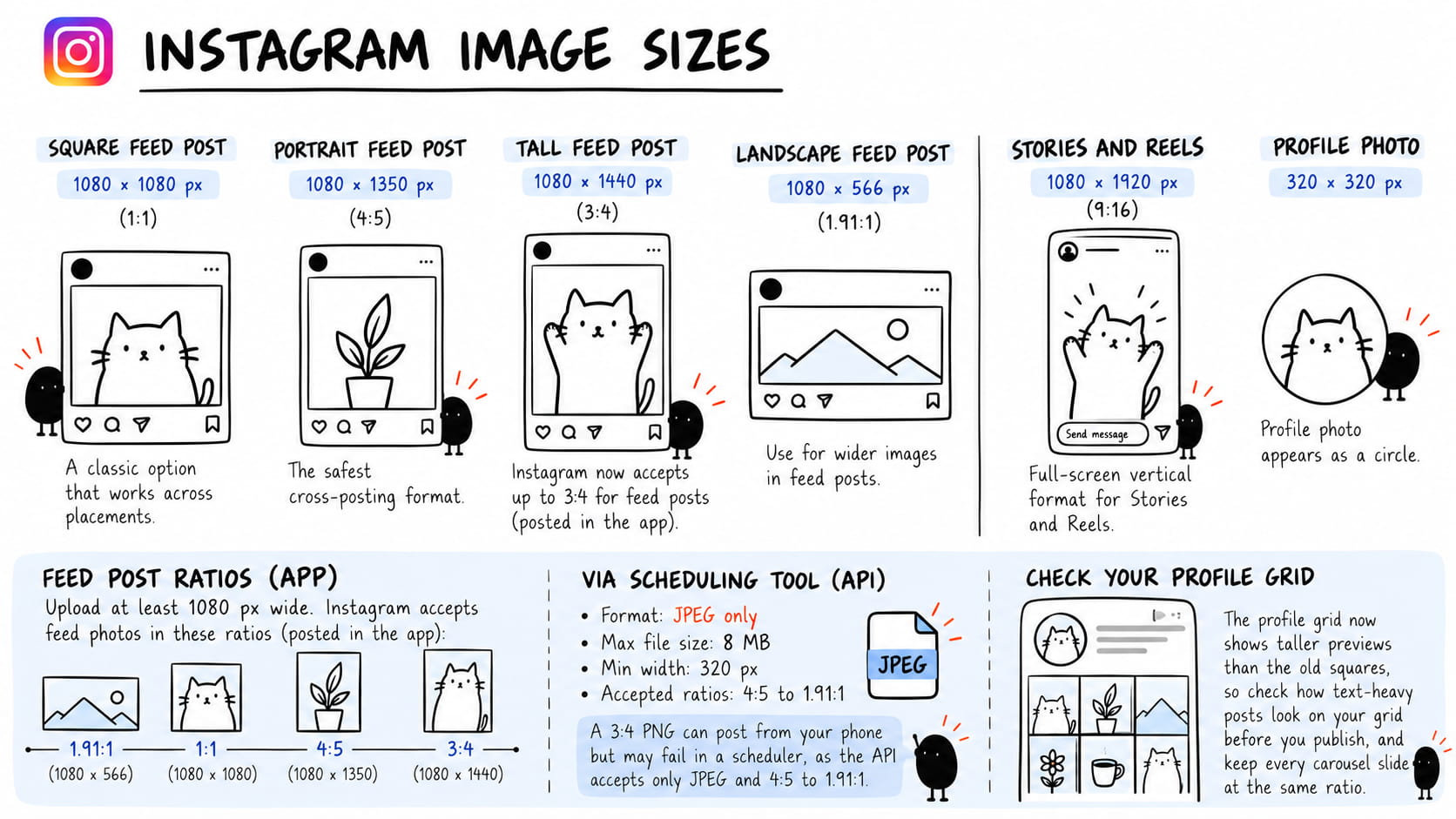
So the rule is simple. Posting by hand to Instagram only? Use 3:4 and take the extra feed space. If a tool publishes directly through Instagram’s API, use a 4:5-or-wider JPEG. For cross-platform feed posts, 4:5 remains the most practical starting point for Instagram, Facebook, and LinkedIn. One more habit worth building: Instagram’s profile grid now uses taller previews than the old square layout, so check how text-heavy posts look on your grid before you publish, and keep every carousel slide at the same ratio.
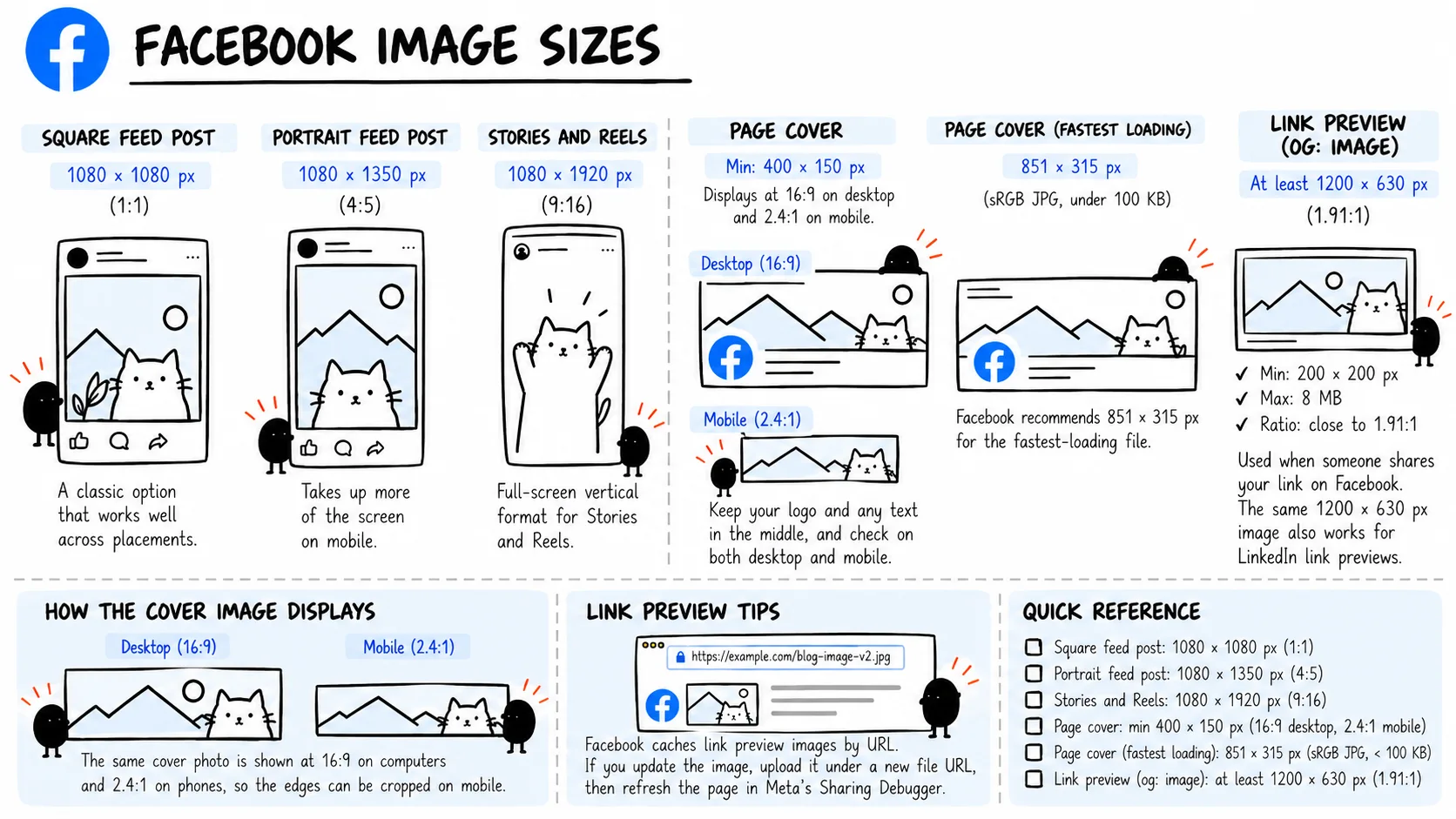
Facebook Image Sizes
| Placement | Spec | Source |
|---|---|---|
| Portrait feed post | Upload: 1080 × 1350 px (4:5) | Common practice: Facebook photo guidance |
| Square feed post | Upload: 1080 × 1080 px (1:1) | Common practice: Facebook photo guidance |
| Stories and Reels | Upload: 1080 × 1920 px (9:16) | Common practice: Facebook photo guidance |
| Page cover | Min: 400 × 150 px. Left-aligned, full bleed at 16:9 on computers and 2.4:1 on mobile | Facebook Help – Page cover photo dimensions |
| Page cover, fastest loading | Format: sRGB JPG, 851 × 315 px, under 100 KB | Facebook Help – Page cover photo dimensions |
| Link preview (OG: image) | Upload: at least 1200 × 630 px, close to 1.91:1. Min: 200 × 200 px. Max: 8 MB | Meta for Developers – Images in Link Shares |
Feed posts are the easy part. The portrait and square files from your Instagram workflow work fine here, and the portrait takes up more of a phone screen.
The cover photo is where people get burned. Facebook’s cover photo guide displays the same cover at different shapes: 16:9 on computers and 2.4:1 on mobile. That means a banner that looks right on a laptop can lose content at the edges on a phone. Keep your logo and text in the center, then check the page on both devices after uploading.
The familiar 851 × 315 px recommendation is Facebook’s guidance for a fast-loading cover, not necessarily the sharpest result. One independent compression test found that larger uploads at the same aspect ratio retained sharper text after processing. Treat that as a starting point for your own upload test, not as an official Facebook recommendation.
Link previews trip people up too. When someone shares your blog post, Facebook pulls the OG image from the page, and Meta’s guide to images in link shares asks for at least 1200 × 630 px. Meta also caches that image by URL, which explains a mystery many marketers hit: you swap the image, and the old one keeps showing. Upload the new version under a new file URL, then refresh the page in Meta’s Sharing Debugger. Bonus: the same 1200 × 630 px image fits LinkedIn’s link previews, so one file covers both.
LinkedIn Image Sizes
| Placement | Spec | Source |
|---|---|---|
| Page logo | Upload: 400 × 400 px. Min: 268 × 268 px | Image specifications for LinkedIn Pages and Career Pages |
| Page cover | Upload: 1512 × 256 px (also the minimum). Max: 3 MB | Image specifications for LinkedIn Pages and Career Pages |
| Life tab main image | Upload: 1128 × 376 px (also the minimum) | Image specifications for LinkedIn Pages and Career Pages |
| Link post image | Upload: 1200 × 627 px (1.91:1). Min width: over 200 px | Image specifications for LinkedIn Pages and Career Pages |
| Image-only post | Ratio: 3:1 to 4:5; taller images are center-cropped. Up to 20 photos per post | Share photos on LinkedIn |
| Personal profile photo | Upload: 400 × 400 px | The photo won’t upload to your profile |
| Personal background | Upload: 1584 × 396 px (4:1). Max: under 8 MB | Add or change the cover image on your profile |
Size charts often get LinkedIn’s page cover wrong, so every row in this table comes straight from LinkedIn’s help center. Two details save real headaches: covers get trimmed on some screens, so keep key details away from the edges, especially the lower-right corner, and LinkedIn recommends a high-resolution JPEG over a PNG for page images.
Posts are where 4:5 earns its place as a practical cross-platform default. LinkedIn supports single-image posts from 3:1 to 4:5 and recommends images at least 1080 px wide. A 3:4 image falls within that documented range. For multi-image posts, LinkedIn renders images at a maximum 4:5 ratio, so use a dedicated 4:5 version instead of reusing a 9:16 Story or Reel graphic with important text near the top or bottom.
On your personal profile, LinkedIn’s help pages give 1584 × 396 px for the background photo and 400 × 400 px for the profile photo. Your photo sits over the lower-left corner of the background, so leave that area empty.
X Image Sizes
| Placement | Spec | Source |
|---|---|---|
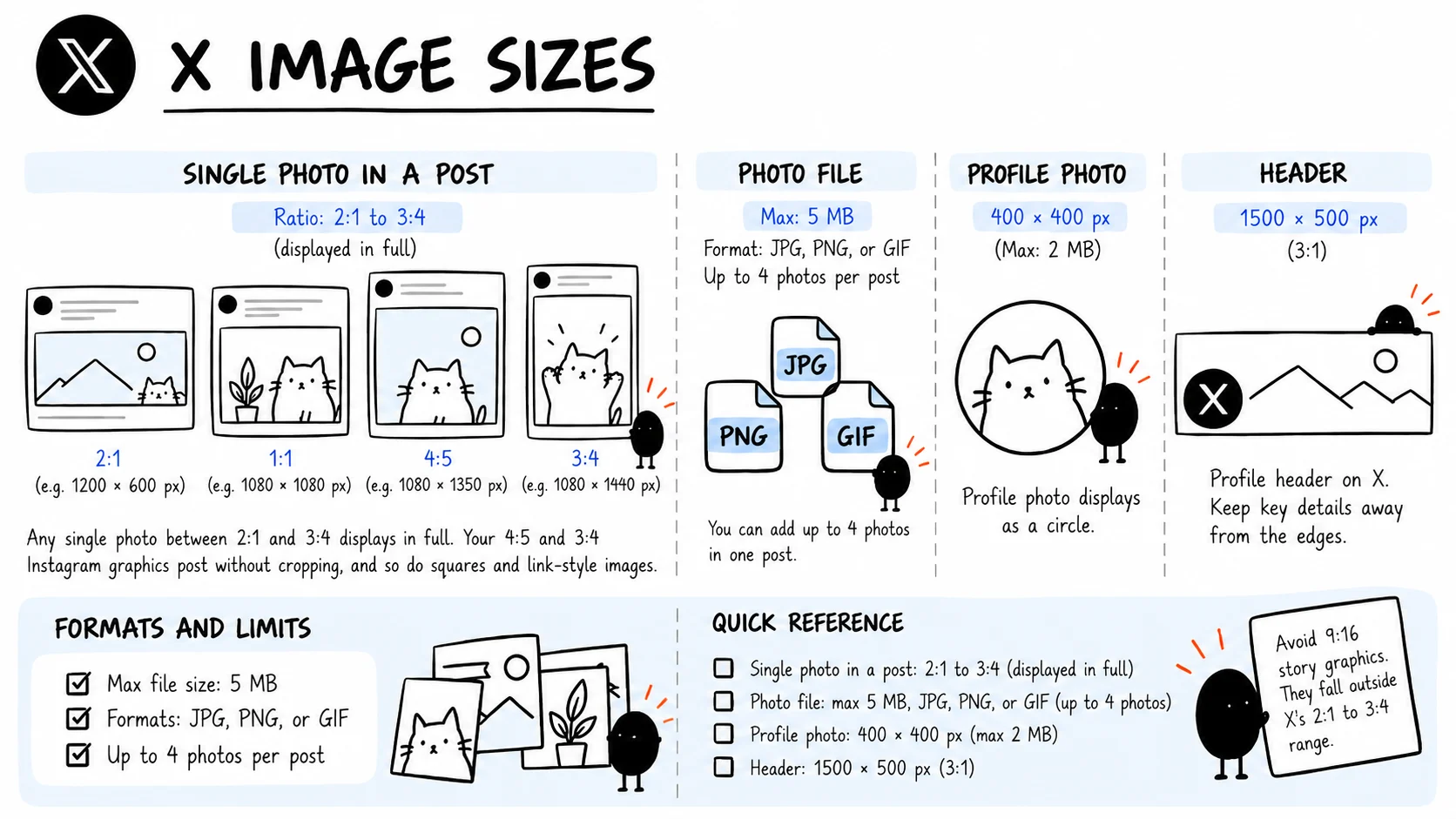
| Single photo in an organic post | Images with a ratio from 2:1 to 3:4 display in full. If the image falls outside this range, X may crop the preview. | X Help: How to Post pictures or GIFs |
| Organic post media | Upload up to 4 total media items in one post, including photos, GIFs, or videos. | X Help: How to post |
| Organic photo formats | Supported image formats include JPG/JPEG, PNG, and GIF. | X Help: Upload profile photos and headers |
| Image ad creative | Recommended formats: PNG or JPEG. Maximum file size: 5 MB. This limit applies to X image ads, not necessarily to organic photo posts. | X Ads: Creative ad specifications |
| Profile photo | Recommended upload: 400 × 400 px. Maximum file size: 2 MB. | X Help: Upload profile photos and headers |
| Header image | Recommended upload: 1500 × 500 px. | X Help: Upload profile photos and headers |
X is friendlier than its reputation. Its photo posting guide says that a single image between 2:1 and 3:4 displays in full. That makes 3:4 graphics, squares, and standard link-preview images safe choices. A 4:5 post is slightly taller than X’s documented full-display range, so preview it before using it for text-heavy creative. Avoid 9:16 story or reel graphics when the full composition matters.
TikTok Image Sizes
| Placement | Spec | Source |
|---|---|---|
| Vertical video | Recommended working canvas: 1080 × 1920 px (9:16). TikTok Creative Codes promotes full-screen vertical creative. | TikTok Creative Codes |
| Photo posts and carousels | Recommended working canvas: 1080 × 1920 px (9:16) for full-screen vertical presentation. This is a practical creative template, not a universal API dimension requirement. | TikTok Creative Codes |
| Photo files via Content Posting API | Supported formats: JPEG or WebP. Maximum resolution: 1080p. Maximum size: 20 MB per image. | TikTok for Developers: Media Transfer Guide |
| Photo posting through API | Photo posts are created through TikTok’s photo-post publishing flow, which differs from the video publishing flow. Check creator information before initiating a direct post. | TikTok for Developers: Photo post API reference |
| Direct Post vs. Upload to Drafts | The Content Posting API supports direct publication to the creator’s account or sending content to TikTok drafts for the creator to complete in-app. | TikTok for Developers: Content Posting API |
TikTok is a full-screen vertical feed, so 1080 × 1920 px is the working canvas for photo posts and carousels. Other ratios still upload, but they leave empty space on the screen, and captions and buttons cover the bottom and right edge, so keep text toward the center.
If your scheduling tool publishes directly through TikTok’s API, file format matters. TikTok’s Content Posting API guide accepts JPEG and WebP for photo uploads, not PNG. Use JPEG or WebP for API-based publishing and keep a JPEG export ready if your tool does not support WebP. These requirements apply to API publishing, not necessarily to manual uploads in the TikTok app.
YouTube Image Sizes
| Placement | Spec | Source |
|---|---|---|
| Channel banner | Upload: 2560 × 1440 px (16:9) recommended. Minimum: 2048 × 1152 px. | YouTube: Channel branding |
| Banner safe area | 1235 × 338 px at the 2048 × 1152 minimum, or about 1546 × 423 px on a 2560 × 1440 canvas. | YouTube: Channel branding |
| Profile picture | Displays at 98 × 98 px. Max: 15 MB. Format: JPG, GIF, BMP, or PNG. Animated GIFs are not supported. | YouTube: Channel branding |
| Video thumbnail | Upload: 3840 × 2160 px (16:9). Minimum width: 640 px. Format: JPG or PNG. Upload limit: up to 2 MB in the YouTube Studio mobile app and up to 50 MB on desktop. | YouTube: Custom thumbnails |
| Shorts thumbnail | Upload: 2160 × 3840 px (9:16). Format: JPG or PNG. Upload custom Shorts thumbnails through YouTube Studio on desktop. | YouTube: Custom thumbnails |
The YouTube banner is the most confusing image on this list, because you design a huge 2560 × 1440 px canvas, and most viewers see only a thin strip of it. YouTube’s channel branding guide sets a 2048 × 1152 px minimum with a 1235 × 338 px safe area for text and logos, and its banner tips recommend 2560 × 1440 px. Both describe the same central strip at different scales. Put your channel name and logo inside it and treat everything else as background, since phones and desktops crop the rest.
Thumbnail guidance changed recently. YouTube now recommends 3840 × 2160 px for standard video thumbnails and 2160 × 3840 px for Shorts. Use JPG or PNG. For standard video thumbnails, upload limits are up to 2 MB in the YouTube Studio mobile app and up to 50 MB on desktop. Custom Shorts thumbnails are currently uploaded through YouTube Studio on desktop.
Pinterest Image Sizes
| Placement | Spec | Source |
|---|---|---|
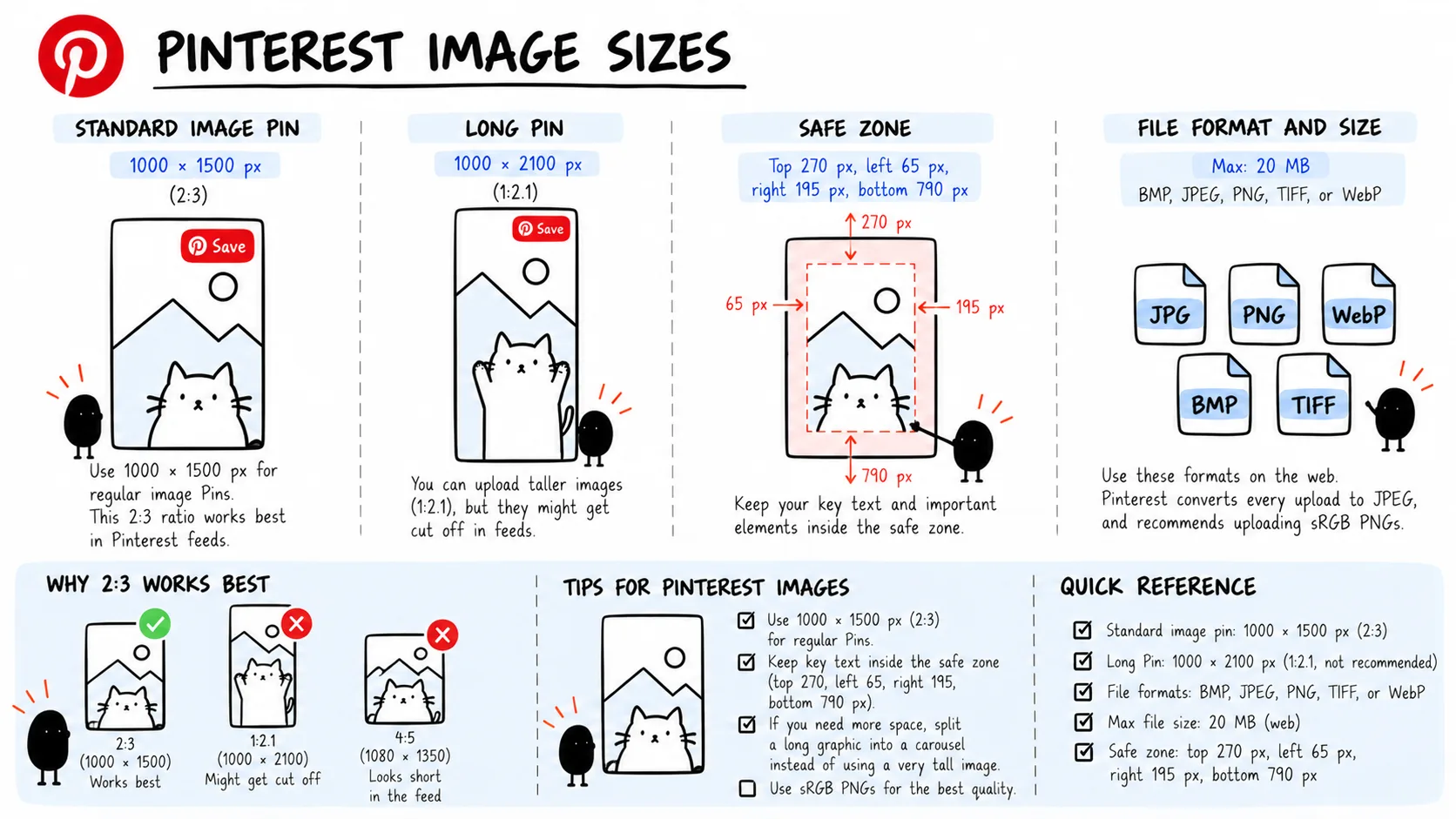
| Standard image pin | Upload: 1000 × 1500 px (2:3). Ratios taller than 2:3 might get cut off in feeds. | Pinterest Business – Product specs |
| Image file | Max: 20 MB on the web. Format: BMP, JPEG, PNG, TIFF, or WebP | Pinterest – Pin specs |
| Safe zone for organic image pins | Keep the text clear of the top 270 px, left 65 px, right 195 px, and bottom 790 px. | Pinterest – Pin specs |
| Long Pin | Upload: 1000 × 2100 px (1:2.1) | Common practice, not recommended |
Pinterest works best at 2:3. Its business specs recommend 1000 × 1500 px and warn that taller images may be cut off in feeds. That makes long pins less reliable, so if an infographic needs more room, split it into a carousel or keep the key message in the top two-thirds.
Two things make Pinterest different from the other platforms in this guide. Among the official documents cited here, Pinterest is the one that provides explicit pixel safe-zone guidance for standard Pins. It supports BMP, JPEG, PNG, TIFF, and WebP uploads.
Keep a PNG master for text-heavy pins, infographics, and graphics with crisp edges, then check the final result in the Pinterest feed. For photo-led pins, a high-quality JPEG is usually the lighter option. A 4:5 cross-platform image can look short in a Pinterest feed, so create a separate 2:3 version for Pinterest.
Safe Zones: Keep Text Where People Can See It
Getting the size right does not stop a username, a caption, or a “Follow” button from landing on top of your headline. A safe zone is the middle part of the image where text, logos, prices, and calls to action stay visible.
Among the platform documents cited in this guide, Pinterest is the one that publishes explicit pixel safe-zone guidance for standard Pins. Meta publishes margins only for ads: its Ads Guide for Instagram Reels asks advertisers to keep the top 14%, bottom 35%, and 6% of each side clear. On a 1080 × 1920 px canvas, that leaves a central block of about 950 × 980 px, roughly 270 px from the top, 670 px from the bottom, and 65 px from each side. These margins are not an official rule for organic posts. They are a practical starting point for Reels, Stories, and TikTok-style vertical creative, where captions, profile details, and controls can cover similar parts of the screen. Add it as a guide layer to your vertical template, and still preview every post in the app before it goes live.
JPG, PNG, and Compression
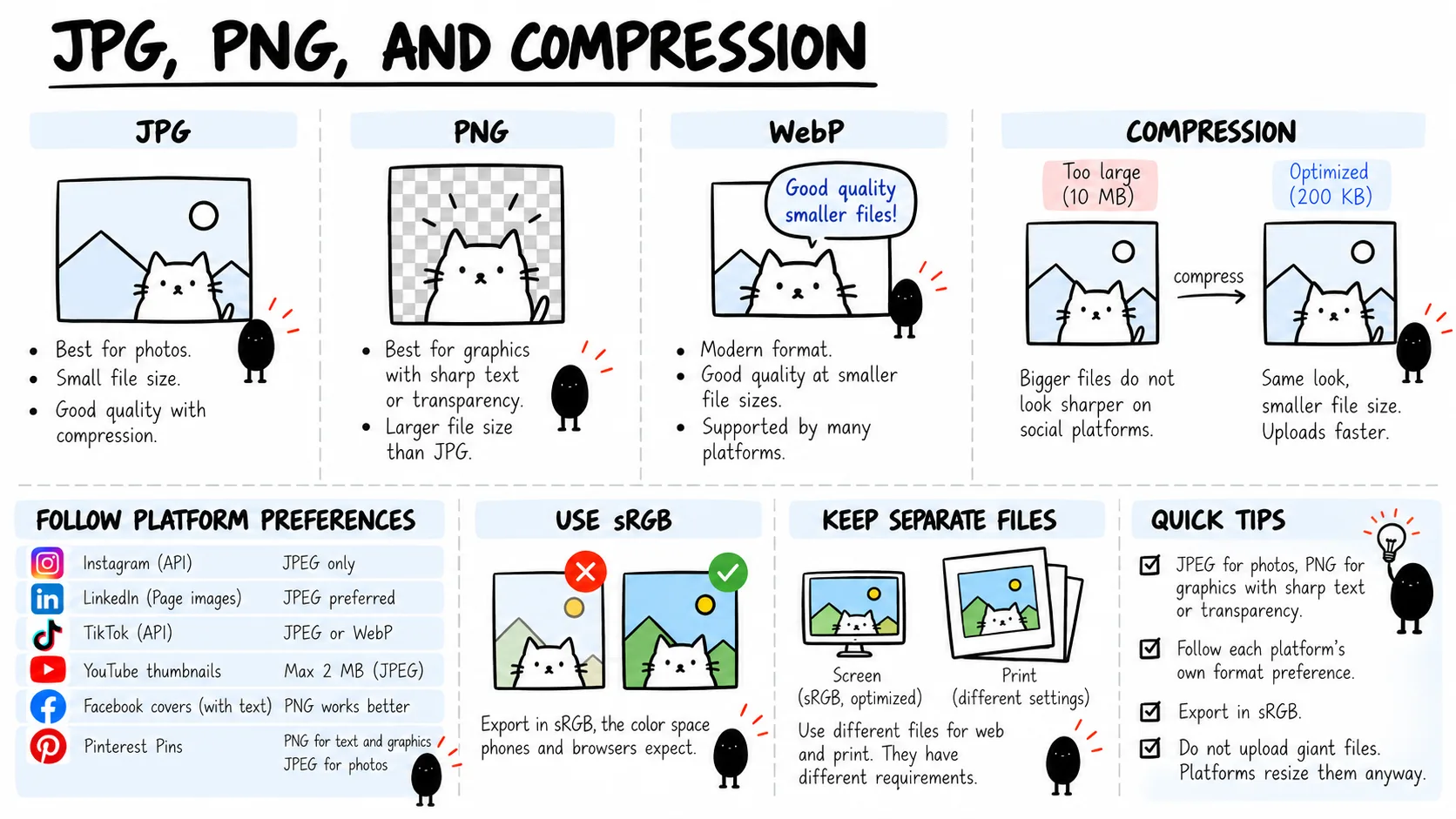
The old rule is still a good starting point: JPEG for photos, PNG for graphics with sharp text or transparency. If you want the full picture, including WebP, Web Image Formats walks through each one, and Vector vs. Raster explains why your logo should start as a vector file.
On social platforms, platform-specific requirements come first. Instagram’s publishing API accepts JPEG files, LinkedIn recommends high-resolution JPEGs for page images, and TikTok’s Content Posting API accepts JPEG or WebP for photo uploads. YouTube supports JPG and PNG. For standard video thumbnails, upload limits are up to 2 MB in the YouTube Studio mobile app and up to 50 MB on desktop; custom Shorts thumbnails are currently uploaded through YouTube Studio on desktop. For a scheduling workflow, JPEG is usually the safest working export when the destination API requires it, but keep a PNG master for text-heavy graphics and transparent assets.
Two more habits prevent most blurry uploads. Export in sRGB, the color space phones and browsers expect, and keep separate files if the same graphic also goes to print, as Print vs Screen explains. And do not upload giant files hoping for extra sharpness, since Instagram, for example, shrinks anything wider than 1080 px. If you make graphics with AI tools, check the generated text against your safe zone; GPT Image 2 for Marketers covers how to get readable text into AI images in the first place.
A Six-Template Kit for Small Teams
You do not need a folder of 40 templates. Six cover most weeks: a 1080 × 1080 px square, a 1080 × 1350 px portrait, a 1080 × 1920 px vertical with the safe zone marked, a 1200 × 627 px link image, a 1512 × 256 px LinkedIn cover, and a 1500 × 500 px X header. If you publish on YouTube or Pinterest, add a 3840 × 2160 px video thumbnail, a 2160 × 3840 px Shorts thumbnail, and a 1000 × 1500 px Pin.
Keep the kit next to your colors, fonts, and logo rules so a freelancer or new hire uses the same files you do. A template kit is one small piece of a brand identity system, and Brand DNA: The Missing Piece Between Your Brand and AI shows how to document that visual layer alongside voice and positioning.
Then protect it with a tiny routine. Put the date you last checked the specs in each template’s file name, and block 15 minutes once a quarter to open the help pages linked in this guide and update only what changed. For a solo marketer, that is exactly the kind of small system worth keeping, as How to Prioritize Marketing as a Team of One argues.
For teams publishing across several networks, the hard part is rarely designing one graphic. It is keeping templates, file rules, and changing platform specs in one repeatable workflow, which is the kind of publishing maintenance Nova Express is being built to simplify. Nova Express is currently in pre-launch.
Social Media Image Sizes FAQ
What is the best image size for social media in 2026?
If you make one feed graphic, start with 1080 × 1350 px (4:5). It is a strong default for Instagram, Facebook, and LinkedIn, including Instagram posts published through supported API tools. For X, use an image no taller than 3:4 when the full design, especially text near the top or bottom, must display without cropping. Squares, 3:4 graphics, and 1.91:1 link-style images are safer than 4:5 or 9:16 posts. Then add a 1080 × 1920 px version for Stories, Reels, and TikTok, and a 1000 × 1500 px version for Pinterest.
Are social media image sizes different in 2026?
A few have changed. Instagram now accepts feed photos up to 3:4, LinkedIn’s page cover is 1512 × 256 px, Facebook describes its cover by shape instead of fixed display sizes, and Pinterest warns against pins taller than 2:3. Before refreshing a template, check the platform’s live help page.
What size should an Instagram post be?
For a full-width feed image, export at 1080 px wide and use a ratio between 1.91:1 and 3:4. That gives you 1080 × 1440 px (tall), 1080 × 1350 px (portrait), 1080 × 1080 px (square), or 1080 × 566 px (landscape). If your scheduling tool publishes directly through Instagram’s API, stick to 4:5 or wider and export as a JPEG. Manual uploads in the Instagram app can use the taller 3:4 format.
What is the LinkedIn Company Page banner size?
LinkedIn lists 1512 × 256 px as both the minimum and recommended page cover size, with a 3 MB limit. You will still see 4200 × 700 px and 1128 × 191 px in other guides, but all three share a roughly 6:1 shape, so an older cover usually just needs re-exporting. Do not confuse it with the Life tab image, which is 1128 × 376 px.
What size is a YouTube banner?
Upload 2560 × 1440 px (YouTube’s minimum is 2048 × 1152 px) and keep text and logos inside the central safe area: 1235 × 338 px at the minimum size, or about 1546 × 423 px on the full canvas. Everything outside that strip may be cropped on phones and desktops.
What size should a Pinterest pin be?
Use 1000 × 1500 px (2:3). Pinterest warns that taller Pins might get cut off, so skip old 1000 × 2100 px long-Pin templates. Keep text and key visual elements clear of the top 270 px, left 65 px, right 195 px, and bottom 790 px. Keep a PNG master for text-heavy Pins and infographics, then test the uploaded result in the Pinterest feed before standardizing your export workflow.
What size should a YouTube Shorts thumbnail be?
Use 2160 × 3840 px in a 9:16 ratio. YouTube currently recommends 3840 × 2160 px for standard video thumbnails and 2160 × 3840 px for Shorts. Use JPG or PNG. Custom Shorts thumbnails are currently uploaded through YouTube Studio on desktop, where the file-size limit is up to 50 MB.
Why does my image look blurry after uploading?
Platforms resize and compress uploads, so small files and unsupported aspect ratios can lose detail or look soft. Export at the platform’s recommended width in sRGB, use a supported aspect ratio, and avoid very fine text or heavy gradients. For Facebook covers, test a larger upload at the same aspect ratio if text looks soft after processing.
Further Reading:
- GPT Image 2 for Marketers: How to Finally Get Readable Text in AI Images
- Brand DNA: The Missing Piece Between Your Brand and AI
- How to Prioritize Marketing as a Team of One
- Web Image Formats
- Vector vs. Raster
- Print vs. Screen
- Brand Identity Systems
- Best AI Video Generators for Marketers in 2026
- What Are AI Tokens?
- AI Tools for Marketers in 2026
About the author
Serafima Osovitny is a Marketing Manager at Nova Express, where she focuses on digital marketing, search visibility, content strategy, and marketing workflows. She writes practical guides that help marketing teams research their audiences, develop strategies, and put their plans into action.
Explore her work at serafima.digital and follow her on X: @OSerafimaA.







Leave a Comment