

You generated a hundred AI images for a campaign. Every one of them looked great until you examined the headline closely. Extra letters. A word that did not exist. A CTA button that was supposed to say “Shop Now” but instead read “Shpo Nwo.”
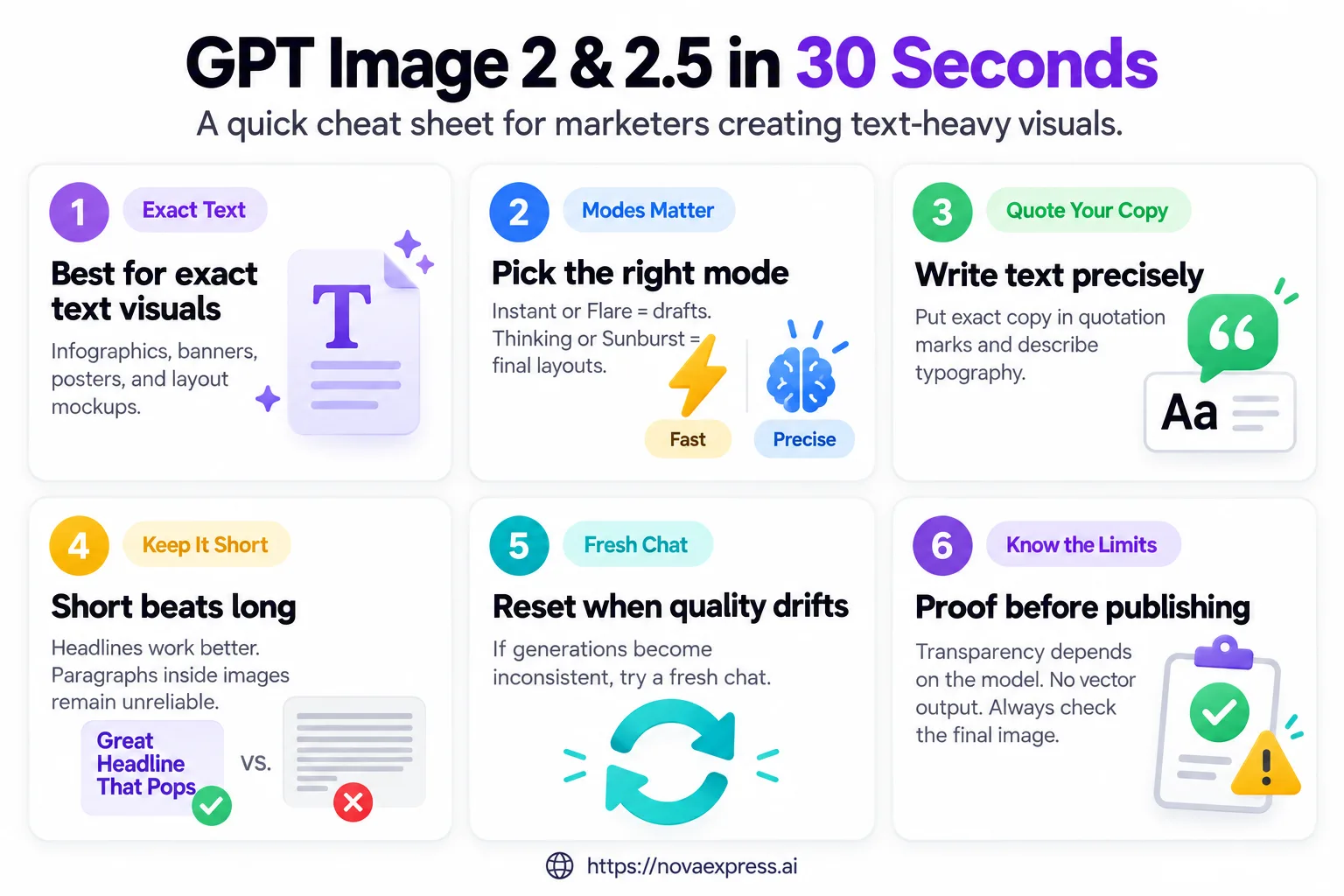
That problem became far less common on April 21, 2026, when OpenAI introduced ChatGPT Images 2.0, powered by GPT Image 2. The biggest upgrade wasn’t just photorealism; it was text rendering. Infographics, posters, and banner ads with specific copy became a realistic use case instead of a five-attempt gamble.
Here is what changed, how to prompt it, what it costs, and the limits worth knowing before you promise anything to a client.
⚠️ Updated October 2026: OpenAI released ChatGPT Images 2.5 on September 8, 2026, with two new API models, GPT Image 2.5 Flare and GPT Image 2.5 Sunburst. The prompting advice in this guide applies to both generations. What changed in 2.5 is covered in its own section below, and the sections on pricing, limitations, and session issues note where 2.5 behaves differently. OpenAI updates model behavior, pricing, and availability regularly, so check the official documentation before relying on any specific number.
If you are still assembling a stack rather than choosing between two image models, start with our broader roundup of AI tools for marketers and come back here when text on the image is the specific problem.
What Changed in GPT Image 2.5
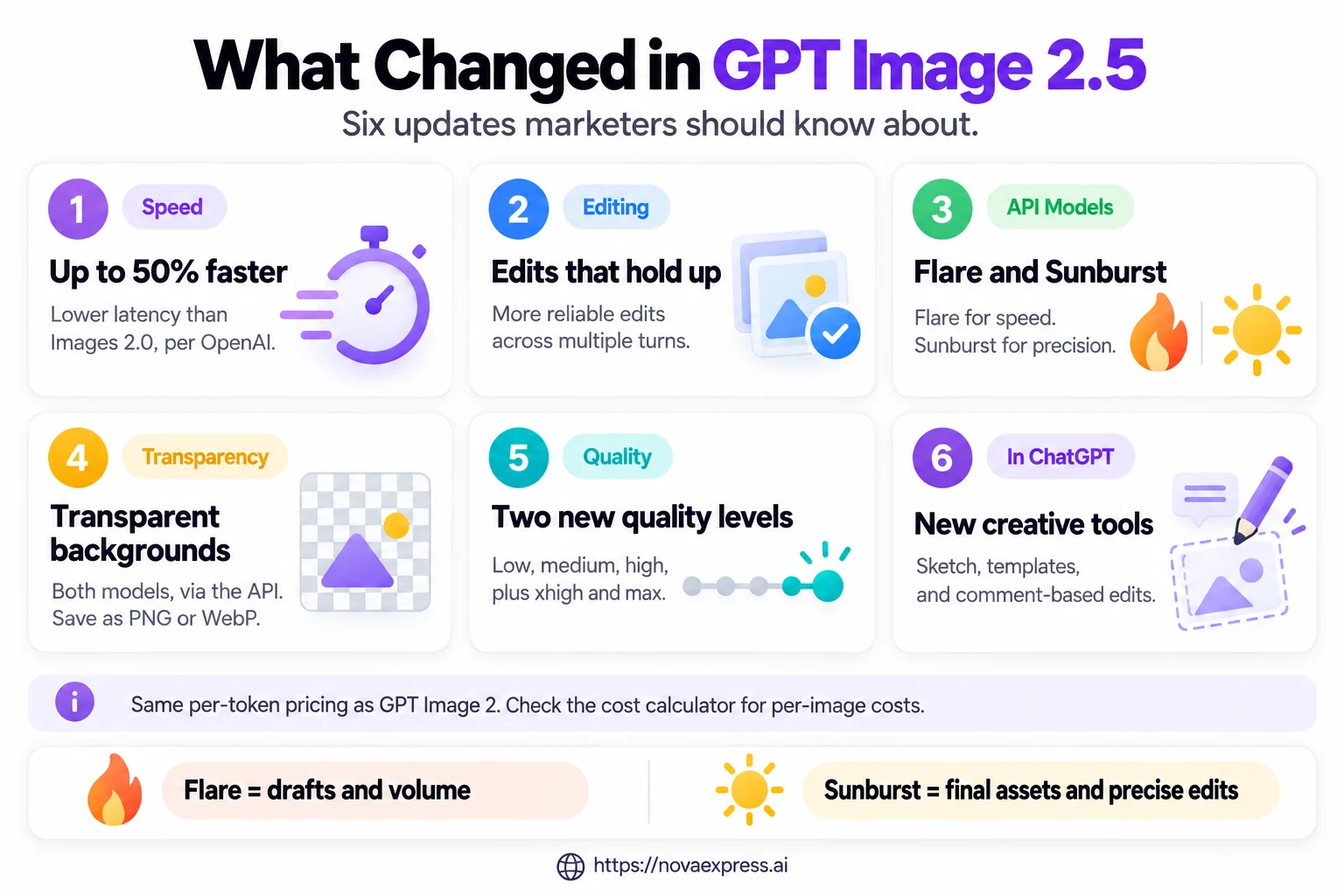
ChatGPT Images 2.5 improves three things that matter most for marketers: speed, editing reliability, and API flexibility. OpenAI reports up to 50% lower latency, while edits hold up better across multiple turns.
The API now offers two models. Flare is optimized for fast, high-quality everyday image generation, while Sunburst is designed for workflows where editing precision matters most. Both support transparent PNG or WebP output and add xhigh and max quality levels. GPT Image 2.5 has higher API prices per token than GPT Image 2, so final image costs can also be higher depending on the model, quality level, image size, and token usage.
Inside ChatGPT, new tools include Sketch, templates, and comment-based edits, making it easier to refine one part of an image without rebuilding the whole prompt.
What Changed in GPT Image 2
When it launched in April 2026, OpenAI described GPT Image 2 as its state-of-the-art model for image generation and editing, supporting flexible image sizes and high-fidelity image inputs through both the Images and Responses APIs. It became the new image-generation model in ChatGPT and was made available across all ChatGPT plans.
Three changes matter most for marketers, plus one caveat about sizes:
- Two modes instead of one: Instant and Thinking
- Text rendering that survives contact with real work
- Multilingual text that actually works
- One caveat: size options differ between ChatGPT and the API
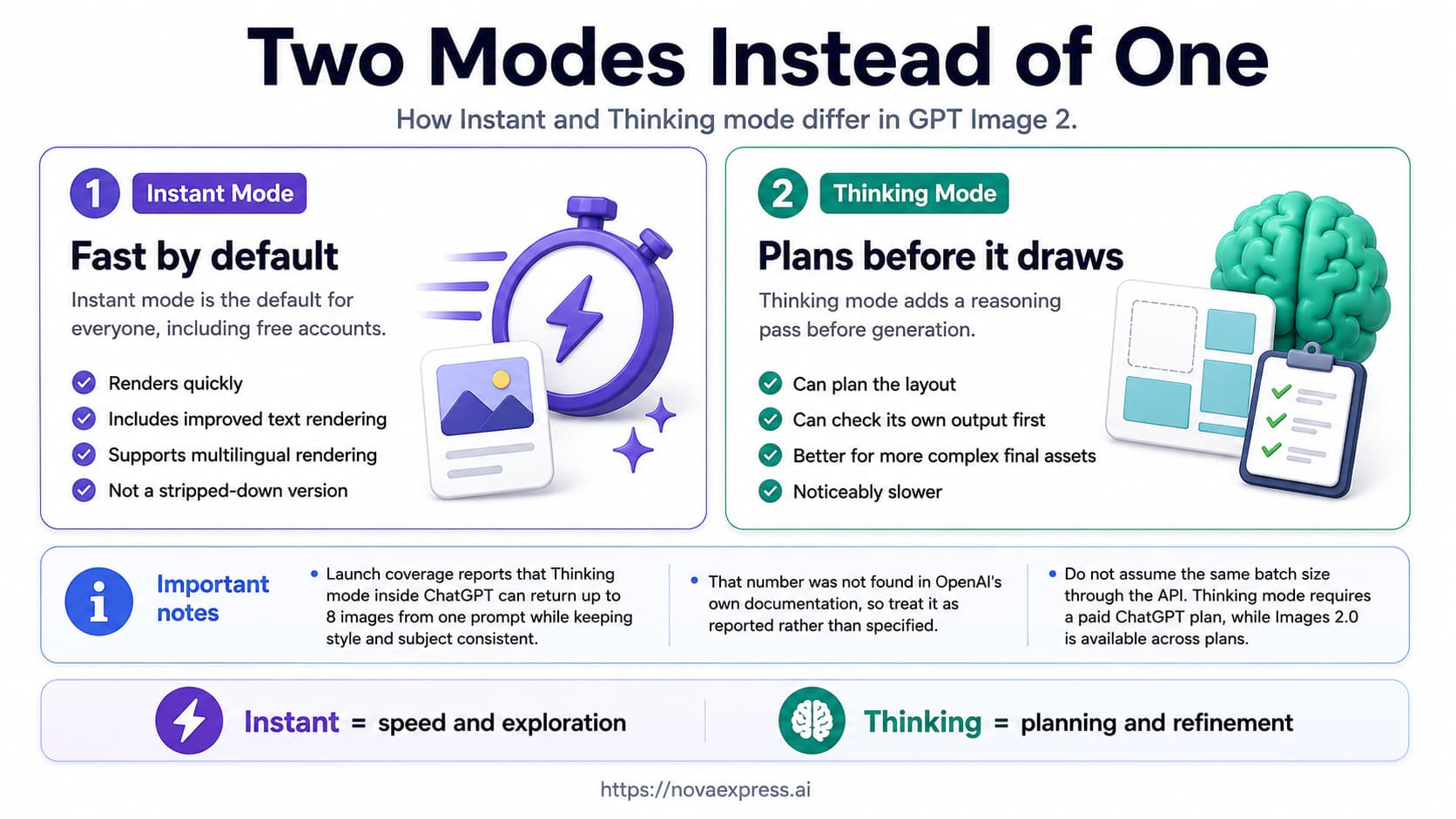
Two modes instead of one. Instant mode is the default for everyone, including free accounts. It renders quickly and includes the improved text and multilingual rendering, so it is not a stripped-down version. Thinking mode adds a reasoning step before image generation and is noticeably slower. ChatGPT Images is available across all plans, while Images with thinking is currently available on Plus, Pro, and Business, with Enterprise and Edu support still rolling out.
Rule of thumb:
- Use Instant for exploration, headline variations, and layout tests.
- Use Thinking for final assets with multiple text blocks, strict hierarchy, or campaign-critical copy.
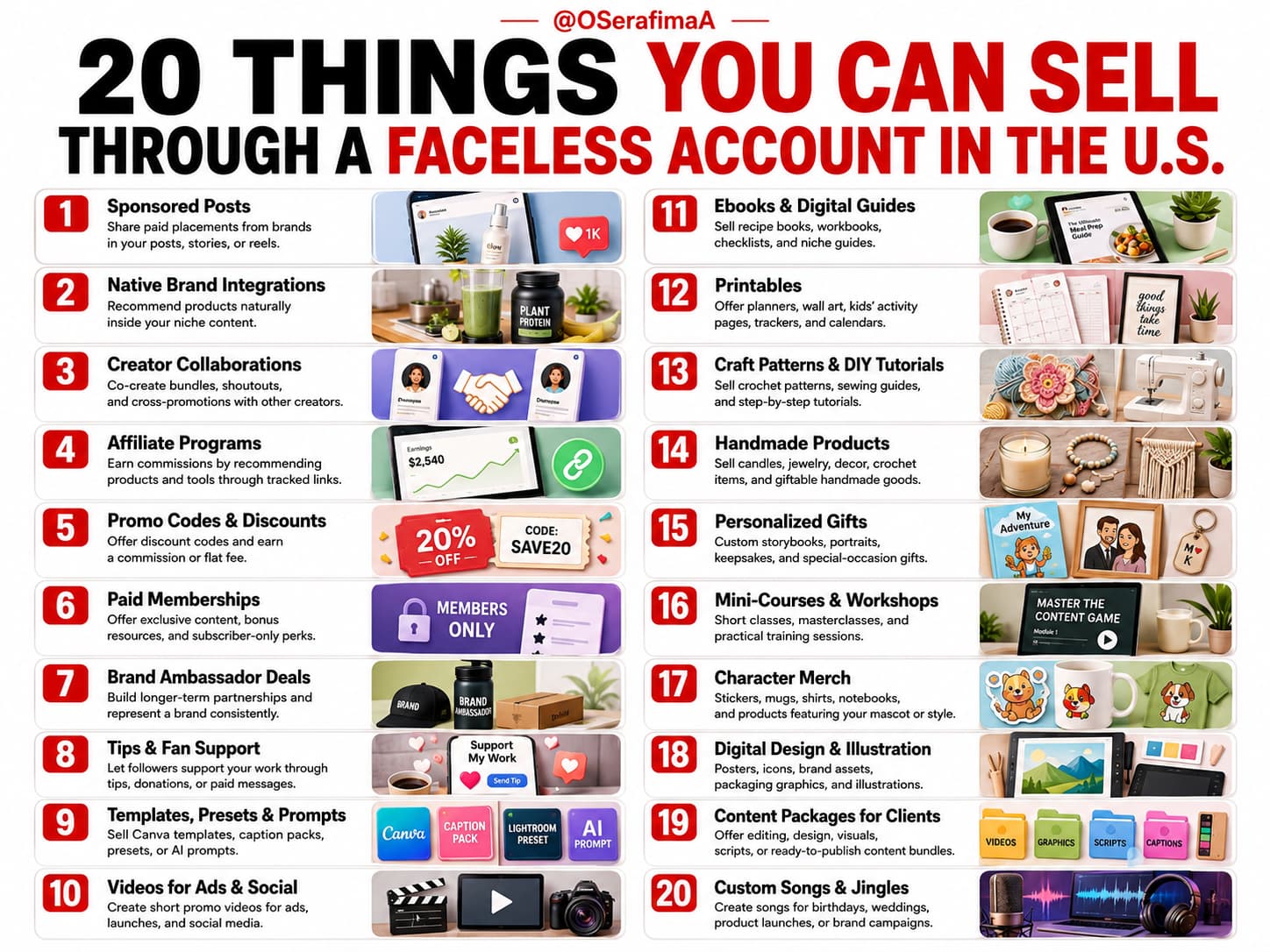
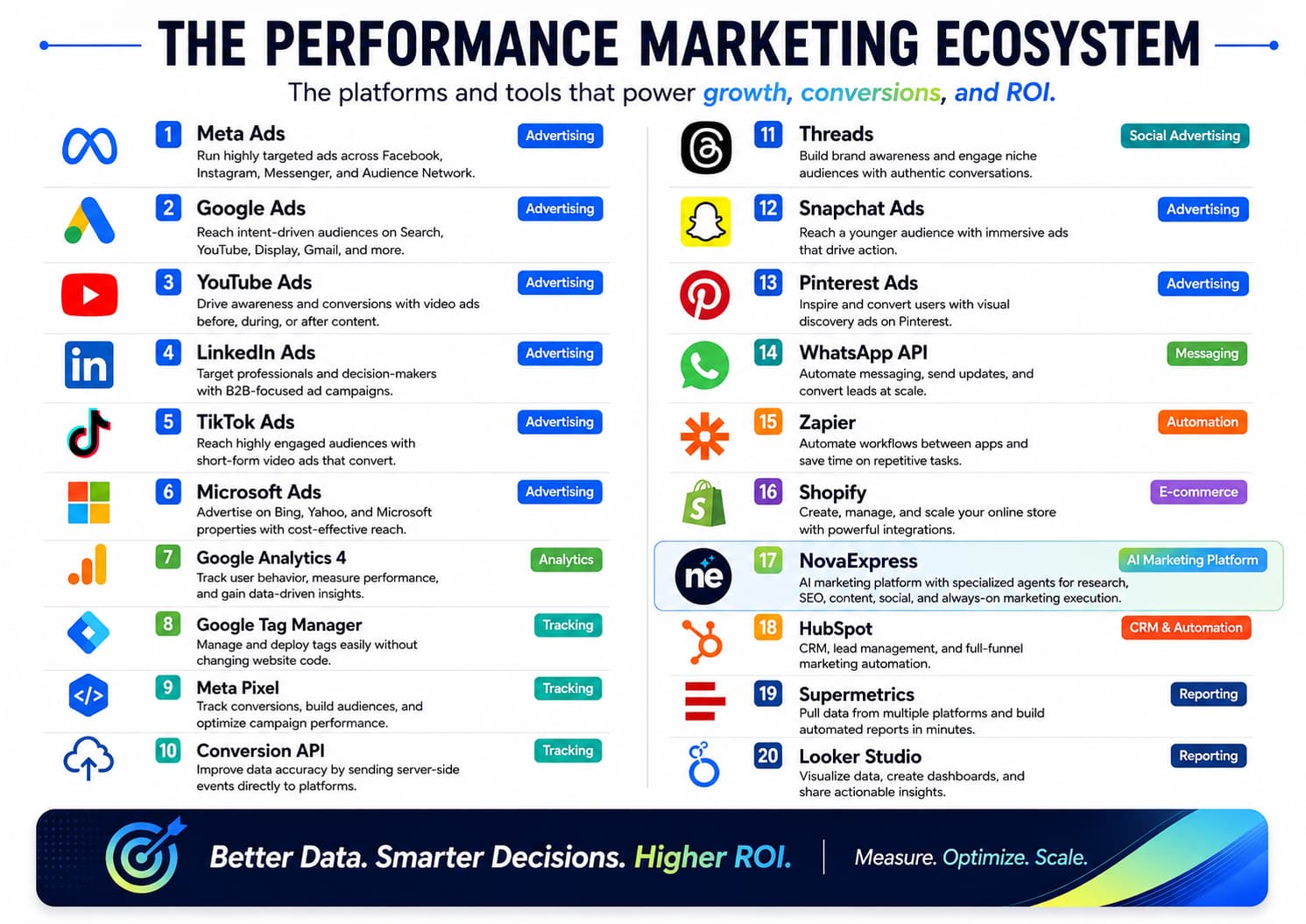
Text rendering that survives contact with real work. Short headlines, labels, callouts, and CTA copy are now far more likely to render legibly within the first few attempts. OpenAI’s own launch materials lean heavily on text-dense examples: magazine-style infographic spreads, academic posters, campaign brochures, and even a print-ready bookmark with bleed and trim guides. But OpenAI still lists text placement and clarity as a known limitation, so this is a large improvement rather than a solved problem.
Multilingual text. The model renders non-Latin scripts, including Japanese, Korean, Hindi, and Bengali, far more reliably than earlier image models. Relevant if your brand runs localized creative.
One interface change worth knowing. Every image you generate is saved automatically under a dedicated Images section, available on web and mobile, so past assets stay browsable without scrolling back through chat history. Useful when you need to find the version a client approved three weeks ago.
One capability worth flagging separately, because it changes what a prompt can be: OpenAI frames the model as a “visual thought partner” and demonstrates the thinking mode of researching a topic before drawing it. One of its own examples generates a product mockup grid from a query about current merchandise. In practice, that means a prompt can ask for a visual about something the model looks up, rather than only something you fully specify.
The size caveat. Through the API, OpenAI supports custom image dimensions and lists 3840×2160 and 2160×3840 among its popular 4K sizes. Custom dimensions must use edges that are multiples of 16, stay within a 3:1 aspect ratio, and keep each edge at or below 3840 pixels. OpenAI also labels resolutions above 2560×1440 as experimental, so it is worth testing them before using them in a client-facing production workflow.
ChatGPT gives you less direct control over output dimensions than the API. That means you should not assume every custom API size will work the same way in ChatGPT. If you need an unusual format like a 3:1 banner, check the actual output dimensions first before building a workflow around it.
For API workflows, custom sizes can go up to 3840 px on the longest edge, with a maximum 3:1 aspect ratio. OpenAI also provides a pinned gpt-image-2-2026-04-21 snapshot if you need stable model behavior. For the full developer-side picture, see our separate guide to GPT Image.
What It Actually Costs
Third-party guides quote wildly different figures because many are reseller prices. These are OpenAI’s published image-output cost estimates for three common GPT Image 2 sizes. Your total API request can cost slightly more because text input and image input for edits are billed separately:
| Quality | 1024×1024 | 1024×1536 | 1536×1024 |
|---|---|---|---|
| Low | $0.006 | $0.005 | $0.005 |
| Medium | $0.053 | $0.041 | $0.041 |
| High | $0.211 | $0.165 | $0.165 |
The surprising part is that square images cost more than the larger portrait and landscape options at the same quality level. OpenAI bills image output by tokens rather than raw pixel count, so more pixels do not automatically mean a higher price. For volume work, test the formats you actually use instead of defaulting everything to square.
Practical takeaway for marketers
- Don’t default everything to square. If your asset works in landscape or portrait, you’ll often pay less and get more pixels.
- Use low quality for drafts and concept tests.
- Use high quality only for final, text-heavy assets.
- For large batches of localized variants, consider batch processing, which offers lower token rates than standard processing for GPT Image 2.5.
If you only use ChatGPT rather than the API, none of this applies; generation is covered by your plan.
GPT Image 2 prices were verified against OpenAI’s official API pricing on October 5, 2026. GPT Image 2.5 Flare and Sunburst use the same token rates as each other, but those rates are higher than GPT Image 2. At standard API pricing, GPT Image 2.5 costs $8 per million image input tokens, $30 per million image output tokens, and $5 per million text input tokens. Run your most common formats through the current cost calculator before budgeting at volume.
When to use which tool
- GPT Image 2.5: assets where the copy inside the image needs to be exact, such as ads, infographics, banners, and storyboards.
- Midjourney / Nano Banana Pro: hero product photos and editorial and cinematic imagery where no text appears inside the image.
- Ideogram: high-volume batch work where typography is the main concern.
- Recraft: logos and scalable brand assets that need editable SVGs.
None of these replaces the others. A realistic workflow uses Midjourney or Nano Banana Pro for a hero product photo and GPT Image 2.5 whenever the copy on the image has to be exactly right.
Two honest footnotes. If text accuracy is your only concern, typography-first generators like Ideogram are worth a look for high-volume batch work. And if you need a logo or scalable brand asset, vector-native generators such as Recraft solve a problem GPT Image 2 cannot: editable SVG rather than a flat raster.
How to Prompt GPT Image 2 and 2.5 for Text-Heavy Visuals
Structure controls the visual. Exact wording controls the text.
Most AI image prompts focus only on what the image should look like. For marketing assets, that is not enough. A strong GPT Image 2 or 2.5 prompt works like a creative brief: it defines the purpose, composition, exact copy, style, and limits.
For drafts and exploration, use Instant or Flare. For complex final assets with dense text or detailed layouts, use Thinking or Sunburst.
The 6-Part Prompt Structure for Text-Heavy Visuals
A production-ready prompt has six parts:
- Purpose and format: why the asset exists and where it will be used
- Scene and subject: the environment and main visual focus
- Layout and hierarchy: where elements appear and what matters most
- Exact text and typography: the words that must appear and how they should look
- Style and visual direction: the overall visual language
- Constraints: what must not change or appear
One example runs through all six parts.
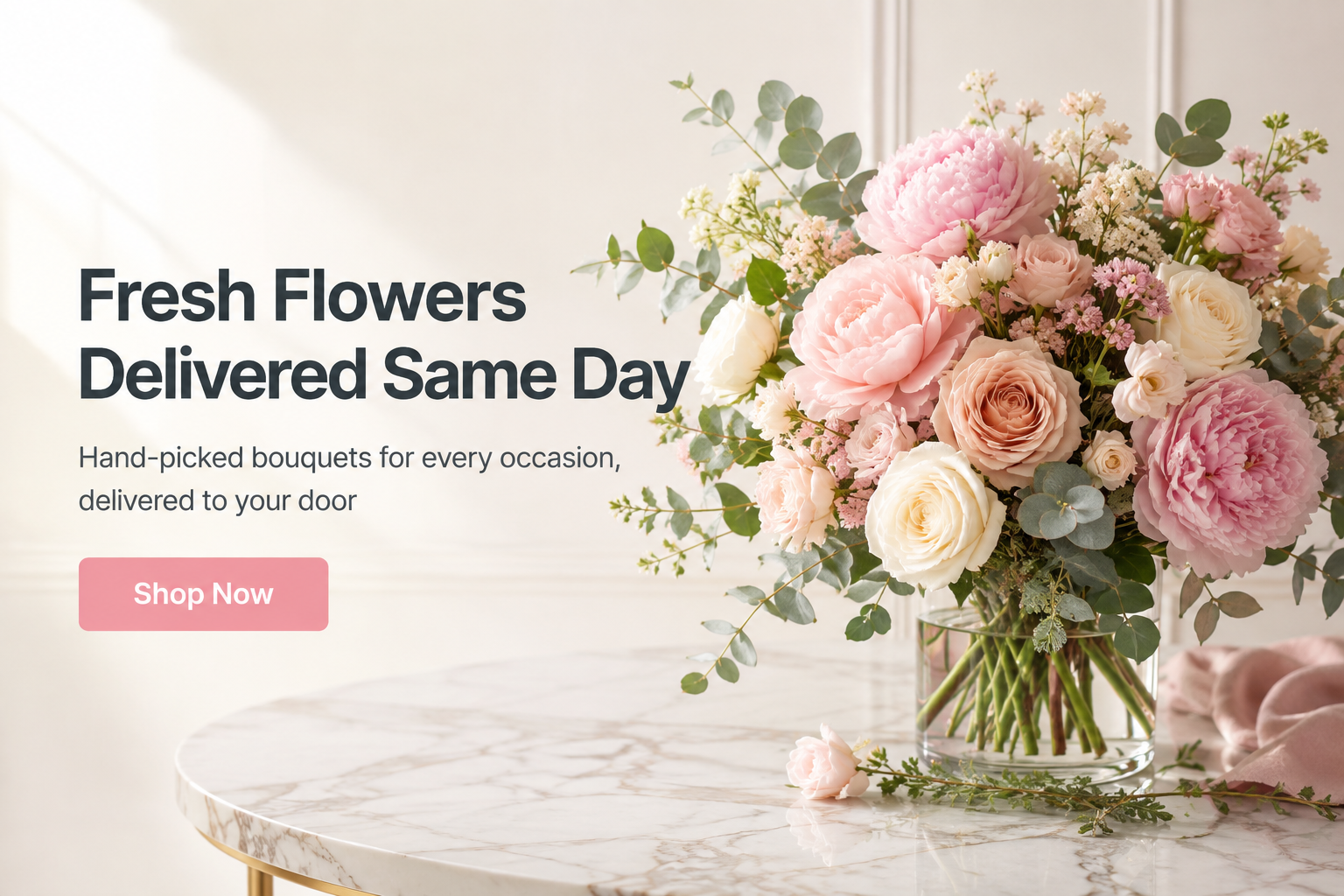
Purpose: Website hero banner for a premium flower delivery service.
Audience: customers looking for fresh flowers for gifts, events, and celebrations.
Format: 1536×1024 landscape website banner.
Scene: bright studio with an elegant bouquet arrangement on a marble table.
Subject: fresh flower bouquet with roses, peonies, and eucalyptus in soft morning light. Layout: bouquet on the right side, headline and CTA on the left.
Hierarchy: the headline is the largest element, followed by supporting text below and a CTA button underneath. Spacing: clean negative space around text and flowers.
Headline: “Fresh Flowers Delivered Same Day.” Subhead: “Hand-picked bouquets for every occasion, delivered to your door”
CTA text: “Shop Now”
Typography: Bold sans-serif headline. Left-aligned. Modern boutique style. CTA in a soft pink accent button. Do not rewrite, shorten, translate, or add any text.
Style: Premium floral brand, elegant, fresh, romantic.
Palette: soft pink, cream, sage green, and white. Lighting: natural morning light.
Constraints: No additional text. No fake logos. No watermark. No distorted flowers. Keep the bouquet realistic and fresh-looking.
A second example, for a multi-panel storyboard:
Purpose: Visual storyboard for a short emotional animated film about a son trying to bake a birthday cake for his mother.
Audience: families, young adults, and viewers who enjoy warm, humorous, emotional stories.
Format: 1536×1024 horizontal storyboard sheet with 8 clearly separated panels arranged in two rows of four.
Story Title: “Storyboard: Ming’s Birthday Cake”
Subtitle: “A clumsy but heartfelt gift.”
Main Character:
Ming, a young Asian office worker in his late twenties, with short black hair, expressive brown eyes, and a light blue office shirt. He is kind, slightly clumsy, sincere, and emotionally expressive. His appearance and clothing must remain consistent across all eight panels.
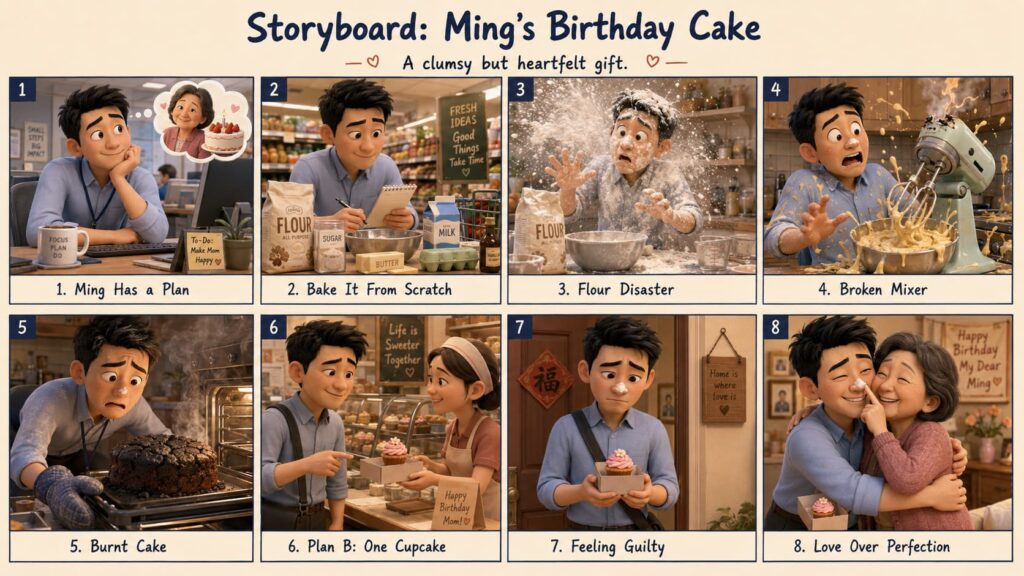
GPT Image 2 and GPT Image 2.5 can get you remarkably close to a finished marketing asset. GPT Image 2.5 improves editing reliability and is better at preserving the rest of an image when you change a specific element, but the final output is still a flattened raster image rather than a layered design file. For full control, bring the image into Canva and, where Magic Layers is available, use it to separate elements. Then place campaign-critical copy such as the headline, price, and CTA as editable text layers and create platform-specific variations.
Two rules that apply to every part
Replace vague adjectives with visual facts. “Stunning,” “professional,” and “high quality” carry little useful visual information. Concrete parameters give the model clearer direction and also make prompts easier to reproduce and troubleshoot.
| Instead of | Write |
|---|---|
| beautiful lighting | golden hour side lighting, soft shadows |
| professional | studio three-point lighting, seamless white backdrop |
| cinematic | wide framing, teal and orange grade, low sun angle |
| photorealistic | Contax T2 film look, Kodak Portra 800 grain, natural light falloff |
| high quality | visible fabric texture, shallow depth of field |
| modern | flat design, generous white space, single accent color |
Know that your prompt may be rewritten. OpenAI documents that when you use the image generation tool in the Responses API, the mainline model automatically revises your prompt “for improved performance.” The rewritten version is returned in the revised_prompt field. For most images, that is harmless. But when an asset depends on exact headline copy, typography, or layout instructions, even small changes to the brief can matter.
The route matters here. This documented rewrite step applies specifically to the image generation tool in the Responses API. A direct Images API request avoids that mainline-model rewrite layer, which makes it the more predictable option when preserving the wording of your prompt matters. That does not mean the image model performs no internal processing; it means your request is not first rewritten by the conversational model.
If you use the Responses API, inspect the revised_prompt field when exact instructions matter. Inside ChatGPT, reinforce critical copy explicitly: “Render the following text exactly as written. Do not rewrite, shorten, translate, or add any text.” Treat that as an instruction rather than a guarantee, and always verify every word in the finished image before publishing.
Editing an approved image: Change / Preserve / Constraints
The six-part structure is for creating an asset. Fixing one is a different and much shorter formula. Do not re-describe the whole scene. Write direct commands, be terse, and state what changes, what stays identical, and what must not happen.
Change: replace the headline text “Simple Pricing” with “New Pricing, Same Simplicity.”
Preserve: background, logo placement, color palette, font style, and overall layout.
Constraints: no added elements, no watermark.
Two details can make text edits more reliable. When replacing copy, quote both the old and the new text so the model knows exactly what to find and what to substitute. And keep each edit focused: changing one or two things at a time makes it easier to preserve the parts of an image that are already approved.
If you need to limit an API edit to a specific region, you can provide a mask. For GPT Image models, the mask must be a PNG, use the same dimensions as the source image, be under 4 MB, and include an alpha channel. The transparent areas indicate where the image should be edited. OpenAI also notes that masking is prompt-guided rather than pixel-exact, so the model may not follow the mask boundary with complete precision.
Inside ChatGPT, you do not need to create a mask file. Open the image and either use the selection tool to highlight the area you want to change or describe the edit directly in the conversation panel. If the change should apply to a specific area, name that area explicitly in your prompt. OpenAI notes that selections are not always precise and that edits can extend beyond the highlighted region, so focused, incremental edits are still the safer approach.
After you generate, verify before you ship
Text rendering is much better, but not solved. Run the same five checks every time:
- Read every word in the image out loud, including the CTA
- Check alignment and hierarchy against Part 3
- Confirm no text was added that you did not ask for
- Confirm the protected negative space is still clear
- Confirm the delivered pixel dimensions match what you requested
Three Problems the Reviews Rarely Mention
Most “best AI image generator” roundups agree that GPT Image 2 handles text better than earlier image models. The issues below, however, are not official product limitations. They are based on reports from users in OpenAI’s community forum and observations from independent hands-on reviews. Treat them as recurring user-reported patterns rather than documented specifications, and keep in mind that behavior can vary between sessions, prompts, and model updates.
1. Output tends to degrade the longer you stay in one chat
Testers report that a visible noise or grid-like texture can sometimes appear after several generations in the same conversation, often becoming noticeable after roughly three to five images. Independent reviewers have described similar artifacts during longer image-generation sessions.
Some users report that starting a fresh chat clears the issue. OpenAI has not documented the underlying cause, so treat this as a reported workaround rather than an explanation of how the model handles session data.
This cuts against the common advice to stay in one thread and refine iteratively. Staying in the same conversation is useful for preserving creative context, but if you start seeing artifacts after several generations, a fresh chat may help. Our suggested compromise is to iterate in one thread until the composition is approved, then try the final prompt in a clean session if image quality begins to drift.
2. Re-running a prompt in the same chat may return a near-identical image
Some testers report that repeating the same prompt in the same conversation can produce a very similar result rather than a clearly different variation. If you want a genuinely different option, starting a fresh chat may help. It is worth knowing before you spend twenty minutes clicking regenerate and wondering why the result barely changes.
3. Reference images and style references can sometimes introduce artifacts
Some users report seeing similar texture artifacts when working with reference images or style-heavy prompts, including in otherwise fresh conversations. This behavior is not documented by OpenAI, and the underlying cause is unclear, so treat it as a user-reported pattern rather than a predictable limitation.
Users report two approaches that may help. One is a follow-up instruction such as “remove the noise from the image, keep all the lines.” Another is simplifying the prompt or reducing unnecessary visual detail. Neither is a guaranteed fix, but both are worth trying if similar artifacts appear. If a reference image is not essential to the task, you can also test the same prompt without it and compare the results.
These issues were documented on GPT Image 2. OpenAI says Images 2.5 holds image quality more consistently over multiple turns, which targets the first problem directly. We have not retested these patterns on 2.5 yet, so treat the fixes above as a fallback if you still see them.
Where GPT Image 2 and 2.5 Still Fall Short
Four of these are OpenAI’s own documented limitations, which are worth reading before you promise anything to a client. Two land directly on marketing work.
Composition control. In OpenAI’s words, the model may have difficulty placing elements precisely in structured or layout-sensitive compositions. That is a description of an infographic. Expect to iterate on anything with a strict grid.
Text placement and clarity. Documented as significantly improved and still imperfect.
Consistency across generations. The model can struggle to hold recurring characters or brand elements steady across separate generations. Generating related assets together in Thinking mode can help preserve more context across the set, but you should still check recurring characters and brand elements for consistency.
Latency. Complex prompts can take up to two minutes.
Three more come from the output format:
Transparent backgrounds. Support depends on the model and workflow. GPT Image 2 did not support transparent output at launch, but API support is now available in preview. Both GPT Image 2.5 models support transparent backgrounds through the API with PNG or WebP output. Inside ChatGPT, removing the background in a dedicated tool can still be the more predictable route.
Raster only. PNG by default, with JPEG and WebP available, plus a compression setting for those two; JPEG generates faster if latency matters. No vector output, so logos and print work need rebuilding or a vector-native tool.
Brand marks are unreliable. The model will render something that is almost your logo. Composite real brand assets afterwards.
Frequently Asked Questions
What is the difference between GPT Image 2 and GPT Image 2.5?
GPT Image 2.5 is the next generation, released in September 2026. OpenAI reports up to 50% lower latency, more reliable edits across multiple turns, and better preservation of reference subjects. In the API, it comes as two models, Flare for speed and Sunburst for precision, and both support transparent backgrounds. Prompting for exact text works the same way in both.
How much does GPT Image 2 cost per image?
Through the API, roughly half a cent for a low-quality draft, four to five cents at medium, and 17 to 21 cents at high quality. Square formats cost more than landscape or portrait at the same tier. Inside ChatGPT, generation is covered by your plan.
Can GPT Image 2 or 2.5 make a transparent PNG for a logo?
GPT Image 2 could not at launch. Both GPT Image 2.5 models can do so through the API if you request a transparent background and save as PNG or WebP. Either way, the result is a raster file, so rebuild a logo as a vector before using it in production.
Further Reading
- Nano Banana Pro: The Complete Guide for Marketers, for the other strong option when your visual needs believable materials rather than exact text
- Our Midjourney prompt guide for photorealistic product and campaign imagery. Written against V7; Midjourney’s current default is V8.2, though the core prompt patterns still apply.
- NotebookLM Infographic: Turning Your Data Into Visual Stories, for deciding what an infographic should actually say
- AI Tools for Marketers in 2026, for the wider stack
- What is GPT Image? on StackNova, the technical companion to this article: the full model family, the Image API versus the Responses API, masks, streaming, and code
- AI Image Color Palette: How to Borrow One From Nature
- Nano Banana Prompts
- 2027 Holiday Marketing Calendar
About the author
Serafima Osovitny is a Marketing Manager at Nova Express, where she focuses on digital marketing, search visibility, content strategy, and marketing workflows. She writes practical guides that help marketing teams research their audiences, develop strategies, and put their plans into action.
Explore her work at serafima. digital and follow her on X: @OSerafimaA.







Leave a Comment