

Your website gets visitors. Analytics show traffic, ads get clicks, and social posts send people over. But orders, inquiries, and bookings barely move.
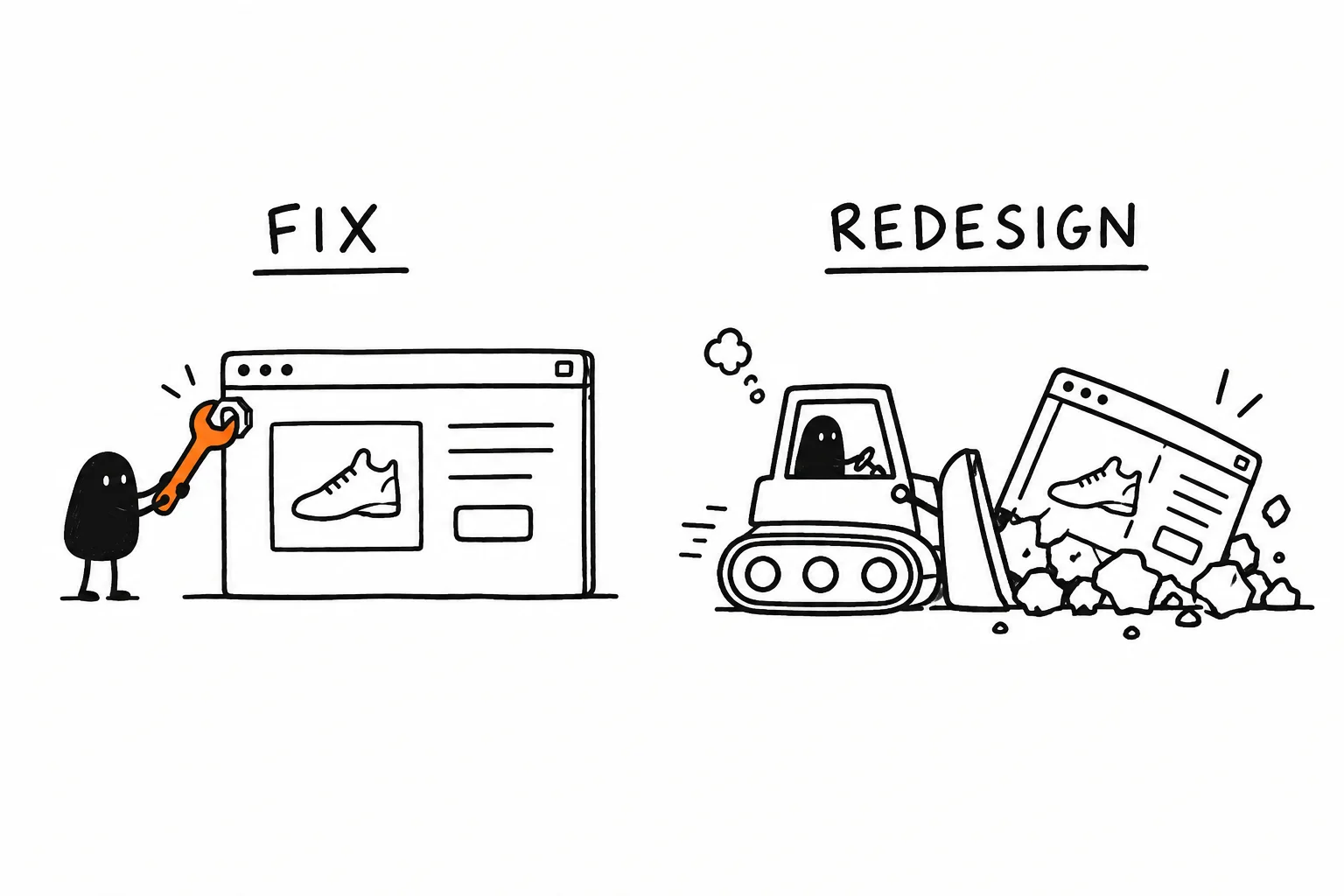
Before you raise the ad budget, redesign the site, or cut prices, find out where the problem sits. When your website gets traffic but few sales, start by examining four areas: traffic quality, your offer, the buying experience, and conversion tracking.
This guide covers 12 causes, how to check each one with free tools, and a seven-day plan for fixing the most important problem first.
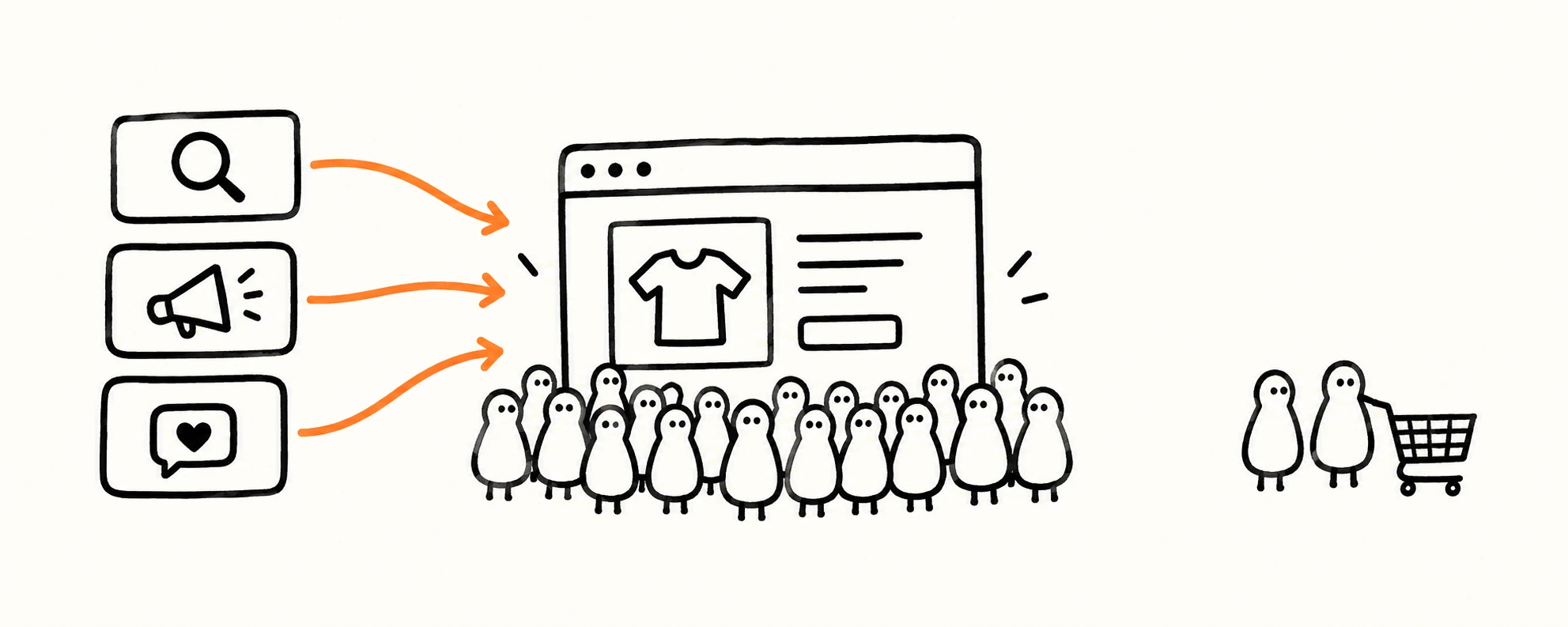
Why Is Your Website Getting Traffic but No Sales?
A visit doesn’t necessarily mean buying intent. Someone reading an educational article is researching. Someone on a product page is comparing. Someone who starts checkout is close to buying. Treat all three the same, and you end up paying to fix the wrong thing.
A store that pulls thousands of readers to general articles may have a traffic-intent problem. A store with plenty of add-to-cart events and almost no orders may have a pricing, shipping, or checkout problem. Same symptom from the outside, completely different fix.
Website Traffic but No Sales: Quick Diagnostic Table
| Symptom | Possible cause | First action |
|---|---|---|
| Orders or inquiries exist, but GA4 shows none | Tracking or reporting mismatch | Compare records, test events. |
| Traffic grows, but product views stay low | Low-intent visitors | Review traffic quality. |
| Ads get clicks, and visitors leave quickly | Message mismatch | Align ad and landing page. |
| Visitors see the offer but rarely act | Unclear value proposition | Clarify the offer. |
| Product views, few cart additions | Missing product information | Add decision details. |
| Visitors hesitate before buying | Trust concerns | Add verifiable evidence. |
| Carts created, few orders | Unexpected costs | Show total costs earlier. |
| Mobile performs much worse | Mobile usability or speed | Fix mobile problems. |
| Visitors read but don’t act | Weak call to action | Make the next step obvious. |
| Forms started, not completed | Form friction | Simplify the form. |
| Checkout starts, payments fail | Broken checkout or payment | Repair checkout. |
| Inquiries rarely become customers | Poor follow-up | Improve lead handling. |
Several of these can be true at once, so treat the table as a starting point, not a verdict.
First, Find Where Visitors Drop Out
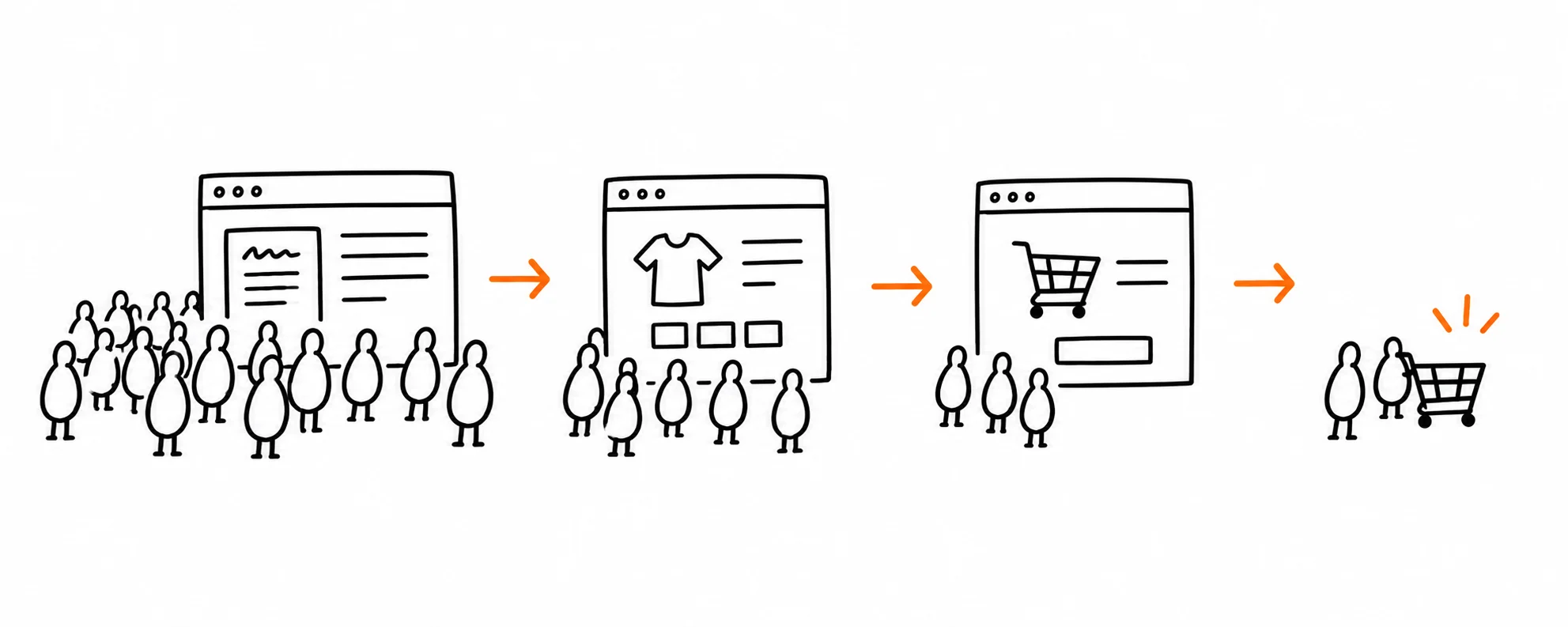
For an ecommerce site, a typical customer journey looks like this: visit → product view → add to cart → begin checkout → purchase.
In Google Analytics 4 (GA4), the recommended ecommerce events for the last four steps are view_item, add_to_cart, begin_checkout, and purchase. These events require additional setup and testing; simply installing GA4 does not enable them. See Google’s official ecommerce events documentation.
For a service business, a typical journey looks like this: visit → service page → inquiry or booking → qualified lead → customer. GA4’s recommended generate_lead event can track a successfully submitted inquiry once it has been implemented.
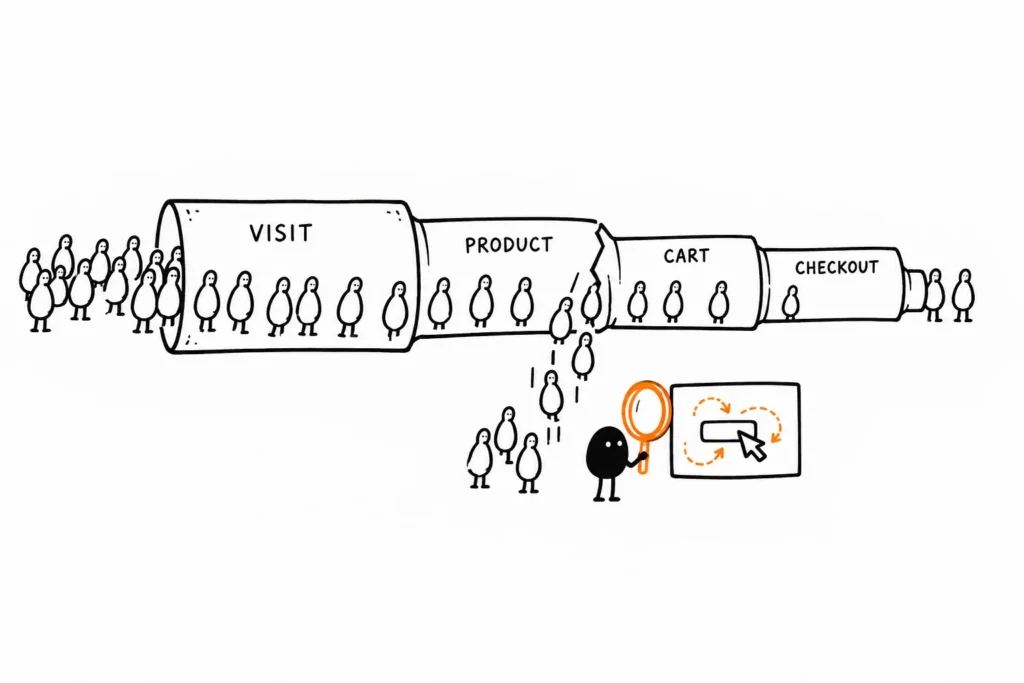
Next, look for the largest drop-off between consecutive steps. A low add-to-cart rate may point to issues with product information, pricing, or trust. Many checkouts start, but few completed purchases may suggest a payment or checkout problem. Neither pattern proves the cause, but each tells you where to investigate. Google’s Funnel Exploration guide explains how to visualize these steps.
Where to Look in Free Tools
Google Search Console: open Performance > Search results, then the Pages tab to see which pages get search clicks. Click a page and switch to the Queries tab. Are people searching to buy, to compare, or just to learn?
GA4 traffic acquisition: open Reports > Acquisition > Traffic acquisition and compare purchases or key events by channel. Check that the traffic comes from sources and countries you actually serve.
GA4 funnel exploration: open Explore > Funnel exploration and add the steps you have set up. Start with the biggest drop between two steps.
Your order records or CRM: compare real orders or inquiries with GA4 for the same dates before you trust either number.
12 Reasons Your Website Gets Traffic but No Sales
1. Your Conversion Tracking Is Incorrect
Before deciding your marketing is failing, confirm your measurement is telling the truth. Missing event setup, duplicate events, broken integrations, consent settings, or an untested checkout change can all hide real purchases.
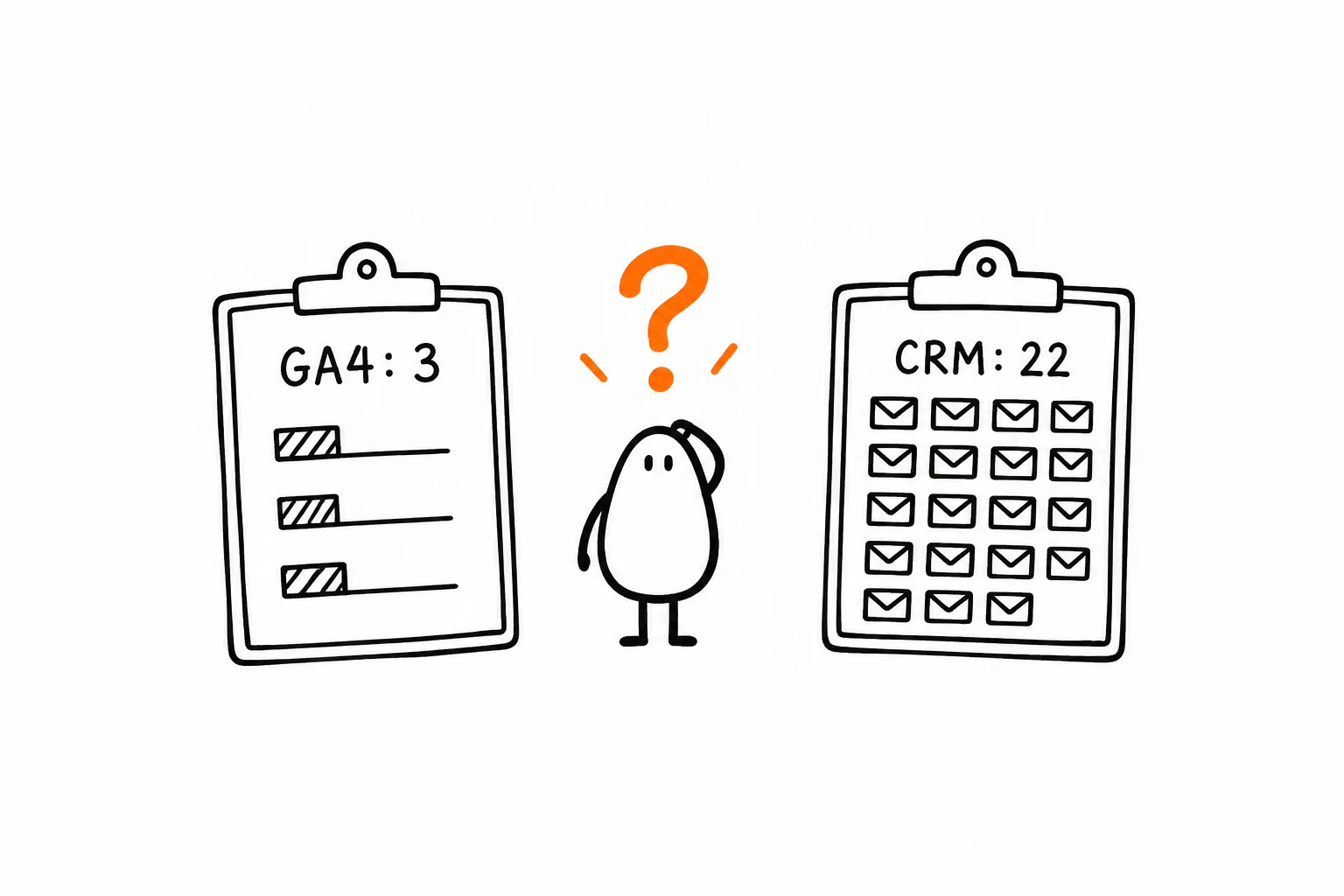
How to check and fix: compare completed orders in your store or booking system, inquiries in your CRM or inbox, and purchases or key events in GA4. If the business has orders and GA4 shows none, check tracking before touching the ad strategy. Run a test and watch events arrive in GA4 Realtime or DebugView. Send a unique transaction ID with every purchase so you can identify duplicates, and for lead forms, count a successful submission, not a button click. Some gap between GA4 and your CRM is normal because of consent settings and ad blockers. Before you call it broken, make sure both count the same thing over the same dates.
2. You’re Attracting Visitors Who Aren’t Ready to Buy
Someone searching for a definition and someone comparing prices are both real visitors. Only one is close to a purchase.
How to check and fix: in GA4, compare purchases or key events by source and channel. In Search Console, check which queries bring organic visitors and whether they match what you sell. Keep in mind that Search Console clicks and GA4 sessions are calculated differently, so the numbers won’t match. Give educational visitors a relevant next step and commercial visitors pricing and a clear path to buy. Stop Selling to People Who Don’t Know They Have a Problem explains how to match the message to how ready someone is. If a campaign keeps pulling the wrong people, fix targeting before adding budget.
3. Your Ad Promises Something Your Landing Page Doesn’t Deliver
An ad says, “Get a custom website audit in 10 minutes.” The click lands on a generic agency homepage with no audit and no obvious way to start. The problem is the gap between expectation and experience.
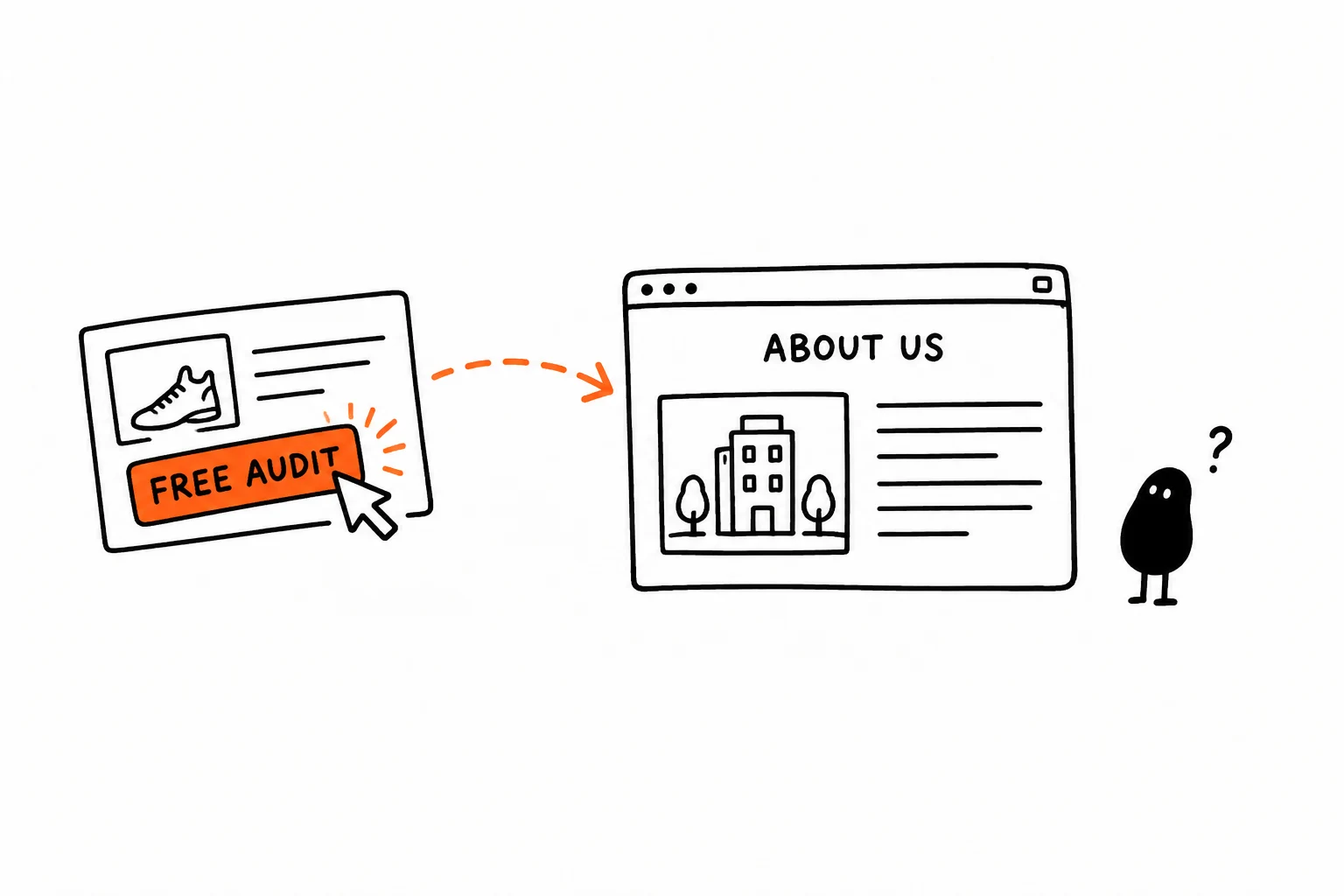
How to check and fix: put the ad and its landing page side by side and compare the promise, audience, price, and call to action. Repeat the core promise near the top of the page and remove anything unrelated. Campaigns for different audiences deserve dedicated landing pages, not the homepage.
4. Visitors Don’t Understand Why They Should Choose You
“Innovative digital solutions for modern businesses” says nothing. “Get professional product photos without organizing a studio shoot” names an outcome a buyer can evaluate.
How to check and fix: run a five-second test. Show the page to someone unfamiliar with the business, take it away, and ask what you sell, who it’s for, and what they would click next. If their answers are wrong or vague, clarify the main heading and supporting copy to explain what you offer, who it is for, and how it helps. If the customer problem itself is unclear, start with Customer Pain Points: Why Your Marketing Isn’t Working.
5. Your Product or Service Page Leaves Important Questions Unanswered
Visitors can understand the offer and still lack what they need to decide: dimensions, delivery, and returns for products, or process, timeline, and scope for services.
How to check and fix: list the questions a cautious buyer would ask before paying and see which ones the page answers. The best source is your customers’ own words in support emails, chats, sales calls, and reviews. Your Best Campaign Idea Is Probably Hiding in a Complaint You Stopped Hearing shows how to find the questions that keep repeating. Then answer them on the page itself, with real photos, clear specs, and a short FAQ.
AI can speed up the sorting. Export a few months of support emails or reviews, remove names and contact details, and ask an AI assistant to group pre-purchase questions by theme and count how often each appears. Use it as a sorting layer, not as evidence: spot-check the groups against the original messages, because AI can merge different questions or overstate a rare theme. For more on using AI to analyze a site’s messaging, see How to Use AI to Build a Marketing Strategy From Your Website.
6. Your Website Doesn’t Give People Enough Reasons to Trust You
A visitor can like the offer and still hesitate because the business is hard to verify, especially when you ask for payment or personal details.
How to check and fix: look at the site as a first-time buyer. Can you tell who runs the business? Can you reach a real person? Are delivery, return, or cancellation terms easy to find? Can the reviews and credentials be verified? Every “no” is a fix. Show real information and evidence, and never invent testimonials, customer counts, awards, or urgency.
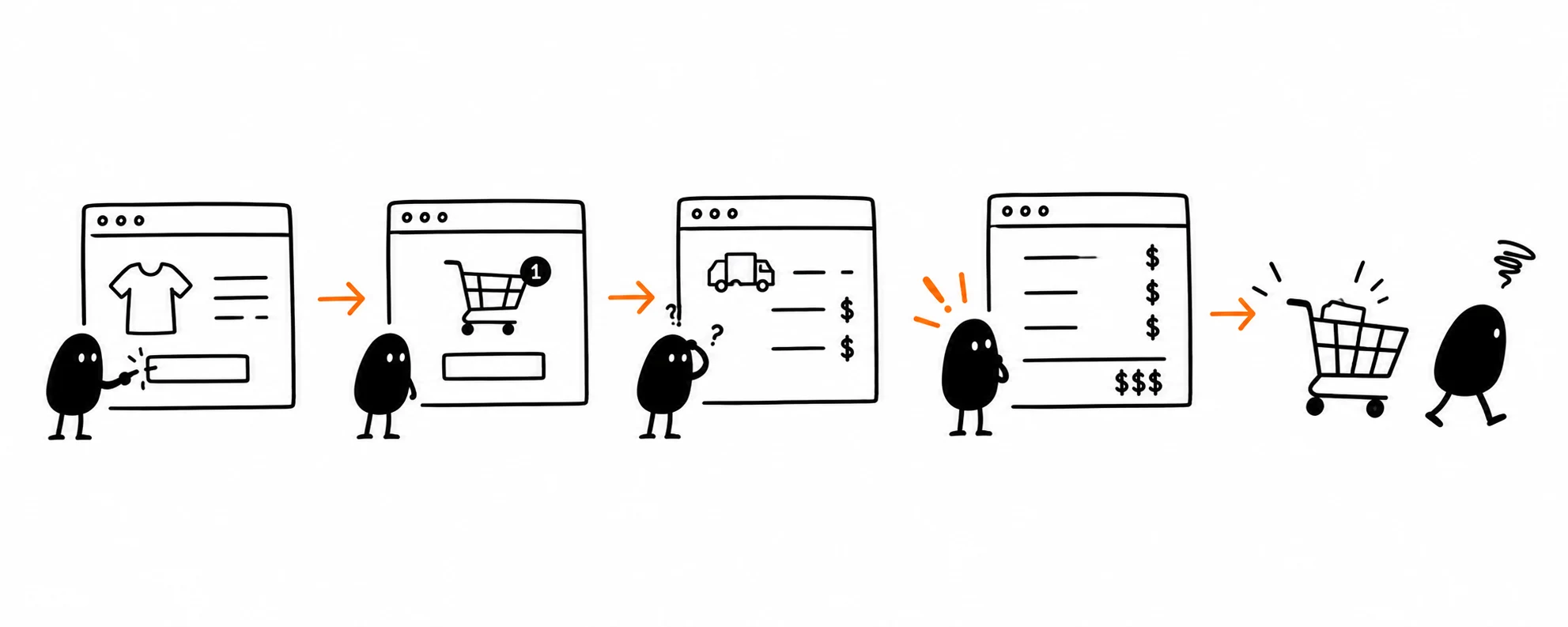
7. Your Prices or Extra Costs Surprise Visitors
The problem may be the total price, unexpected extra costs, or not knowing the final amount until checkout. Baymard Institute’s cart abandonment research lists extra costs that are too high (shipping, taxes, and fees) as the leading reason for abandonment among US online shoppers, after excluding those who were just browsing, cited by 40% of respondents.
How to check and fix: walk through a purchase and note the step where the full cost appears. Show shipping, taxes, and fees as early as possible, ideally as an estimated total before the final step. For services, say whether a price is fixed or an estimate. Don’t discount until you know whether the issue is price, value, or surprise.
8. Your Website Is Slow or Hard to Use on Mobile
A site that looks great on a desktop can frustrate on a phone: tiny buttons, shifting images, and checkout forms that break on narrow screens.
How to check and fix: try to buy or submit an inquiry on a real phone, then run key pages through Google PageSpeed Insights. Google’s “good” Core Web Vitals thresholds are an LCP of 2.5 seconds or less, an INP of 200 milliseconds or less, and a CLS of 0.1 or less, assessed at the 75th percentile of real-user page loads. Fix whatever blocks an important action first, such as oversized images, heavy scripts, or small tap targets, then test the journey again.
9. Your Call to Action Is Confusing or Hard to Find
A section that asks visitors to book a call, join a newsletter, read the blog, and download a PDF forces four decisions instead of one.
How to check and fix: name the one purpose of each landing page and give it one primary action, such as “Request a quote” or “Start checkout.” Use specific button labels instead of “Learn more,” and keep secondary links visually quieter.
10. Your Forms Ask for Too Much
People are more likely to complete a short, relevant form than one that asks for information the business doesn’t yet need. In ecommerce, forced account creation does the same damage: in Baymard’s research, 18% of US shoppers who abandoned a checkout said the site required an account.
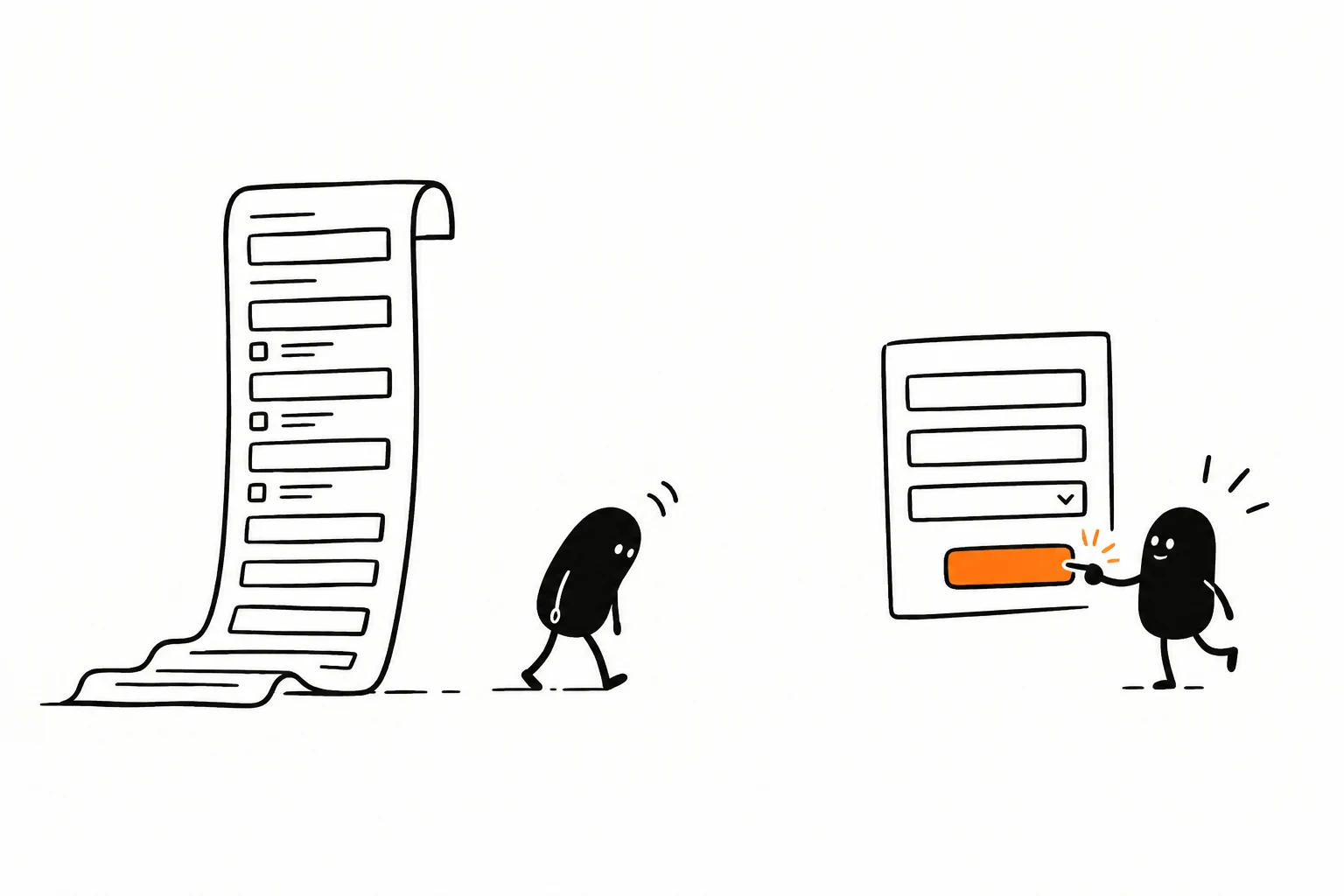
How to check and fix: fill in your own form on desktop and mobile and ask whether each required field is needed right now. Write error messages that explain the fix. Offer guest checkout and make it prominent, as Baymard’s checkout usability research recommends. For services, save qualification questions for after the first inquiry.
11. Your Checkout, Booking, or Payment Process Is Broken
Sometimes the problem is technical. A payment method rejects valid cards, or a form shows a success message while the inquiry goes nowhere.
How to check and fix: complete the whole process yourself, using a test environment or a small refundable order, and confirm the order record, confirmation email, or inquiry actually arrives. Use payment, form, or server logs to find errors, and retest after every integration change. A responsive button is not proof that anything went through.
12. You Don’t Follow Up When People Show Interest
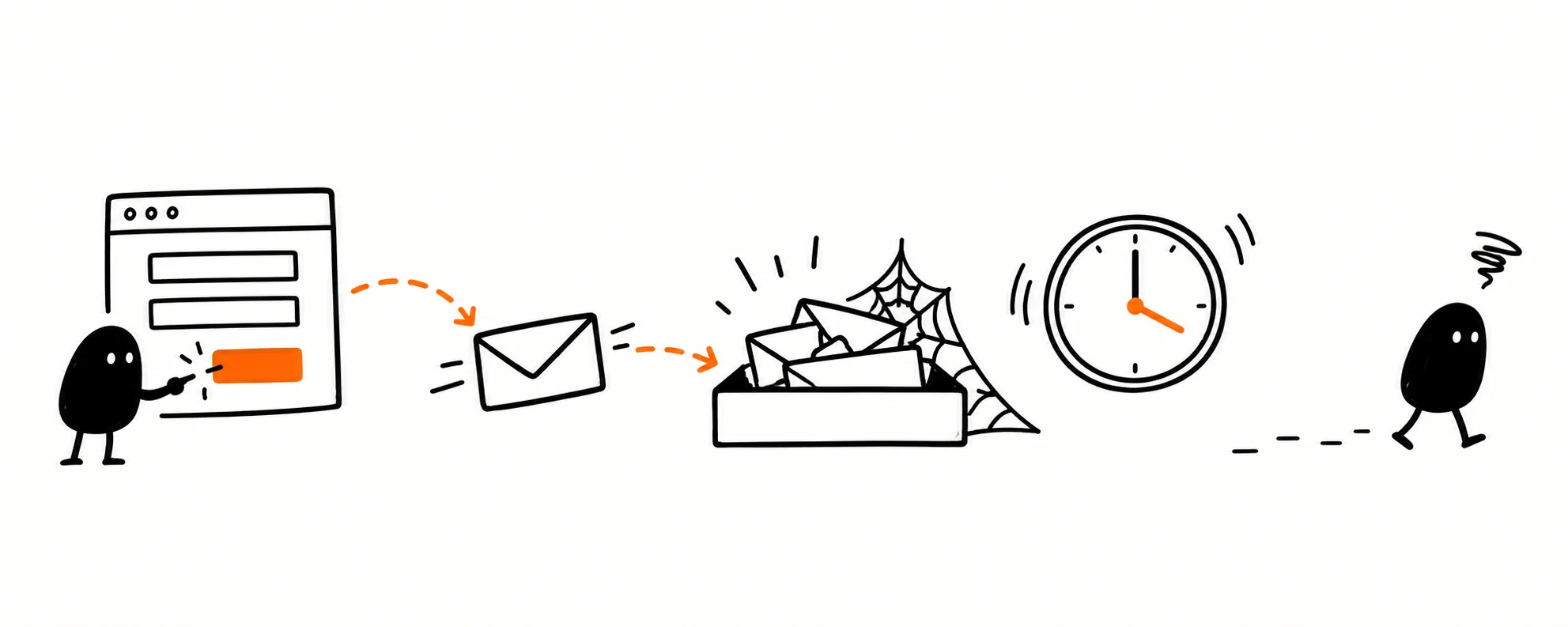
Not everyone buys on the first visit, and a slow reply can lose a lead the website captured perfectly well.
How to check and fix: trace what happens after a form or booking. Who receives it, and how fast do they respond? Send a confirmation, route each inquiry to a named person, and track the next step. For ecommerce, set up abandoned-checkout messages within consent and platform rules.
Two Examples: How to Diagnose the Real Problem
Both examples are hypothetical. They show the diagnostic process, not real customer results.
A small home decor store sees this funnel in a month:
2,000 visits → 180 reach a product page → 12 add to cart → 1 checkout → 1 order. The owner wants a redesign, but 91% of visits never reach a product page. Most arrive through an article about decorating small apartments, so they came to read. A reasonable first test is to add relevant product links to that article and measure whether more readers reach the product pages. Rebuilding checkout wouldn’t help the 1,820 visits that never reached a product page, and 12 carts is too few to judge checkout anyway.
A consulting business sees 600 landing page visits, 40 form starts, and 3 generate_lead events in GA4, while its CRM shows 22 new inquiries from the same page. Before blaming the campaign, check that GA4 and the CRM count the same inquiries over the same dates. If they do, the form tracking is the likely culprit. Fix it first, then judge the campaign.
How to Fix a Website That Gets Traffic but No Sales: A 7-Day Action Plan
Changing everything at once makes it difficult to know what helped. Use the following seven-day plan to investigate the problem and make an initial fix.
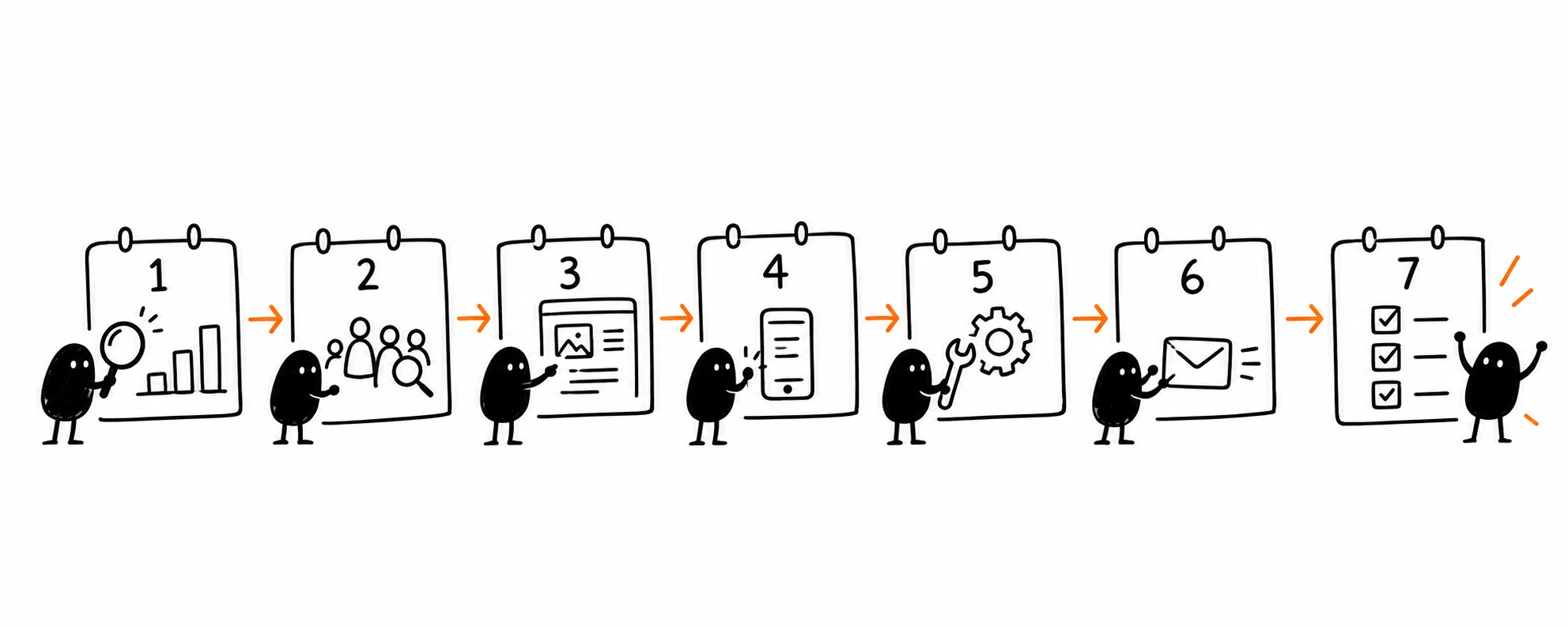
| Day | Focus | What to do | Output |
|---|---|---|---|
| 1 | Tracking | Compare GA4 with real orders and CRM records | Baseline numbers you trust |
| 2 | Traffic quality | Review sources, landing pages, Search Console queries | Buying vs research traffic |
| 3 | Offer and pages | Compare ad promises with pages, run a five-second test | Unanswered buyer questions |
| 4 | Mobile | Buy or inquire on a real phone, run PageSpeed Insights | Mobile blockers |
| 5 | Biggest barrier | Fix the issue with the strongest evidence, retest | One verified fix |
| 6 | Follow-up | Check routing, confirmations, abandoned-checkout flows | Working lead handling |
| 7 | Review | Separate confirmed fixes from open hypotheses | The next test |
A week can help you identify the most likely problem and make an initial fix. Proving that the change improved conversions takes more time and reliable data. Compare results against your own baseline on similar traffic, not an industry average, and remember that at low volume a change of one or two orders is noise. If several problems remain, How to Prioritize Marketing as a Team of One offers a simple test for choosing the one that matters.
Frequently Asked Questions
Why Are My Google Ads Getting Clicks but No Sales?
A click means someone chose to visit, not that they planned to buy. Check keyword relevance, whether the landing page delivers the ad’s promise, and whether tracking and checkout work before raising the budget.
Why Does My Shopify Store Get Traffic but No Orders?
Check product page performance, add-to-cart activity, shipping costs, and payment methods, then compare Shopify’s order records with GA4. If Shopify shows orders that GA4 doesn’t, check that both cover the same dates and consent settings, then test your purchase tracking before blaming the store.
What If My Website Gets Traffic but No Leads?
For a service business, check whether visitors reach your service and contact pages, whether the offer and next step are clear, whether the form works on a phone, and whether submitted inquiries reach a real person. Then compare where visitors come from with the services you actually sell.
How Many Visitors Do I Need Before I Can Judge My Conversion Rate?
There is no universal minimum. You need enough visits and conversions to distinguish a meaningful change from normal variation. With only a few orders a month, avoid drawing conclusions from short periods or small changes.
What Is a Good Website Conversion Rate?
There isn’t one rate for every business. A store counting purchases and a consultancy counting form submissions measure different things. Your own consistently measured history is the most useful benchmark.
Final Thoughts: Stop Buying More Traffic Until You Understand the Problem
Find the break in the journey. Check whether the data is accurate, whether the right people arrive, whether the page matches what they expected, and whether anything gets in the way once they decide to act. Then fix one problem and measure again.
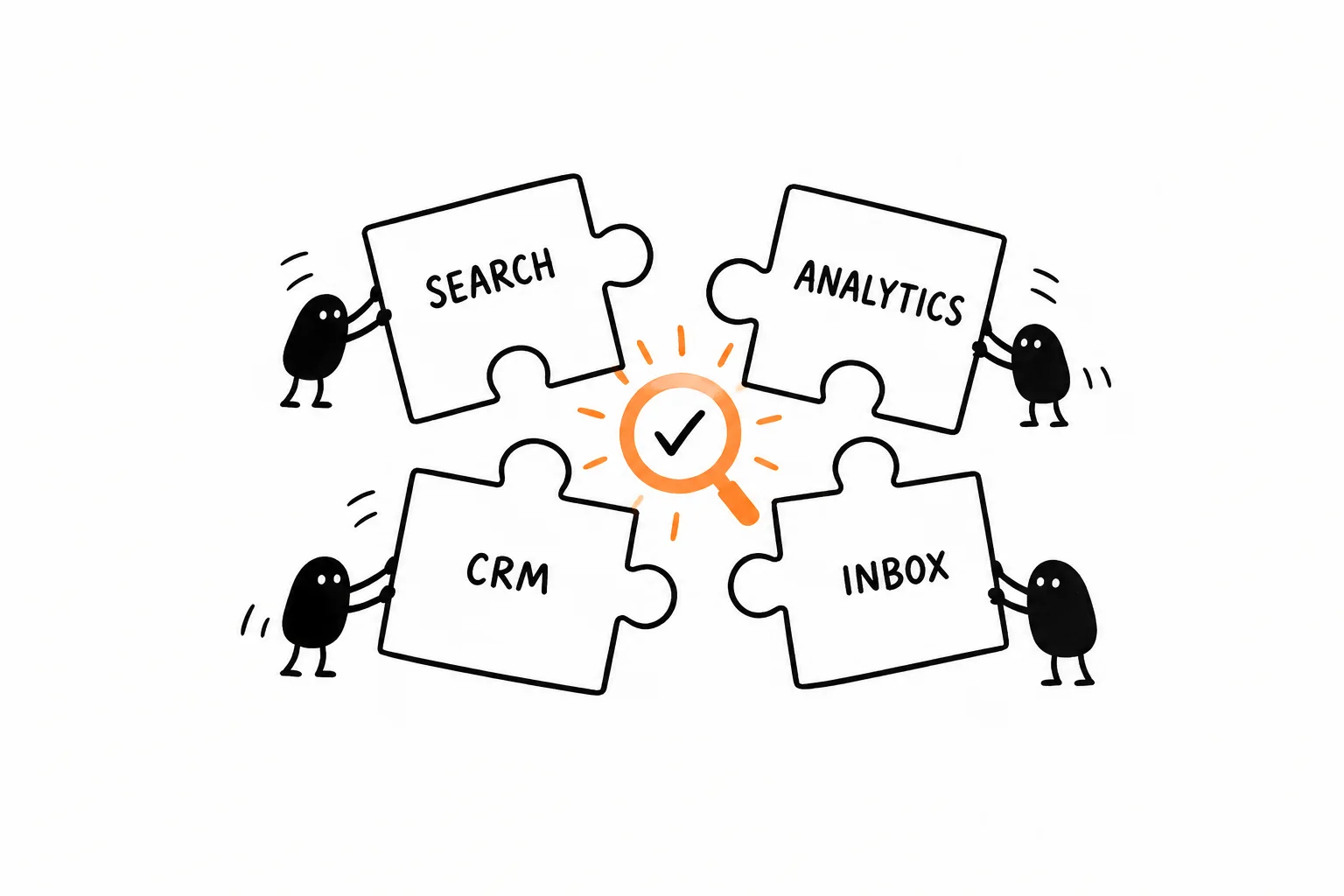
The answer rarely lives in one dashboard. Search Console shows what people searched for, GA4 shows where they went next, your CRM shows which inquiries became real opportunities, and support emails reveal the questions analytics can’t explain. Put those pieces together, and the problem usually becomes much easier to see.
If traffic is only part of a larger marketing problem, continue with The 2026 Marketing Audit: 15 Questions to Ask Before You Spend Another Dollar. If the real gap is understanding what customers need, start with Customer Pain Points.
The most useful marketing improvement isn’t always getting more visitors. Sometimes it’s finally understanding what happens to the ones you already have.
Sources and Further Reading
- Google Search Central: Using Search Console and Google Analytics Data for SEO
- Google Analytics: Set Up Ecommerce Events
- Google Analytics: Recommended Events
- Google Analytics: Funnel Exploration
- Baymard Institute: Cart Abandonment Research
- Google: Core Web Vitals
Related articles
- What Is an AI Marketing Agent?
- Best AI Video Generators for Marketers in 2026
- The 2026 Marketing Audit: 15 Questions to Ask Before You Spend Another Dollar
- Customer Pain Points: Why Your Marketing Isn’t Working
- How to Prioritize Marketing as a Team of One
About the author
Serafima Osovitny is a Marketing Manager at Nova Express, where she focuses on digital marketing, search visibility, content strategy, and marketing workflows. She writes practical guides that help marketing teams research their audiences, develop strategies, and put their plans into action.
Explore her work at serafima.digital and follow her on X: @OSerafimaA.







Leave a Comment