

Email Warm Up Guide: 4 Weeks to 90% Inbox Placement.
Last month, a SaaS founder sent me a screenshot. His campaign dashboard read: 12,000 emails sent, 40% Inbox Placement, 5% Open Rate.
“Is this normal?” he asked over the phone. No. It is catastrophic.
He’d been sending emails for three weeks straight: same list, same email template, same sender domain. Nothing was working. His emails weren’t bouncing (they were simply vanishing into spam folders).
Four weeks later, he ran a second campaign using a completely different approach. The results: 92% Inbox Placement, 24% Open Rate, higher engagement, and better replies.
Same list. Same quality emails. The only difference: Email warm-up.
This phase is what everyone skips. This is precisely why emails often fail to be read by recipients.
⚠️ Important: Every email sent without warm-up damages your domain reputation.
Gmail remembers mistakes. Fixing a reputation later is ten times harder than starting correctly.
⚠️ Critical Success Factors
This 4-week protocol achieves 90% inbox placement only under ideal conditions: clean domain, >70% active contacts, perfect DNS alignment.
If your domain has a history of spam, your list is mostly inactive, or you can’t monitor metrics daily, plan for 6-8 weeks.
US Legal Compliance: Under the CAN-SPAM Act, each violation can cost up to $46,517 per email. Before sending:
- Include your physical business address in every email footer (required)
- Make unsubscribe links visible and functional (process within 10 days)
- Never use misleading subject lines
- Identify your email as an ad if it’s promotional
Note: For US-only campaigns, focus on CAN-SPAM, not GDPR.
Why Gmail Doesn’t Trust Your Domain (And How Warm-Up Fixes It)
Here’s what actually happens when you hit send on your first campaign:
Gmail (52% US market share) doesn’t know who you are. Neither does Outlook/Office 365 (~40% of business users) or Yahoo/AOL. They don’t know if you’re legitimate, so they play it safe and send you to spam.
You might be thinking: “But I’m using Amazon SES / Mailgun. They’re trusted platforms. Shouldn’t Gmail trust me?”
No. Here’s why that thinking costs you 60% of your email reach:
Infrastructure reputation ≠ domain reputation
Yes, Amazon SES has 99% deliverability (because millions of legitimate businesses use it). However, Gmail evaluates each domain individually based on sender reputation, not the platform itself. Gmail understands that any email infrastructure, including SES, serves senders with different intentions and compliance standards.
Your domain starts at zero (even if your infrastructure is trusted).
Without warm-up, your first campaign might hit 20–40% Inbox Placement instead of 95%.

Good News: You Need to Warm Only Your Domain, Not the IP
If you’re using SES or Mailgun, you only need to warm your domain. Senders on dedicated IPs must warm both the domain AND the IP (taking 6–8 weeks instead of 4). You skip that step.
⚠️ But what if you skip the warm-up entirely? Every email sent without warm-up tells Gmail: “This sender might be spam.” Once flagged, recovery takes months. Start right, save months of headache.
Note: This applies to shared IPs (default for SES/Mailgun). If you’re on a dedicated IP, you’ll need to warm both the IP and the domain (6-8 weeks).
What This Warm-Up Guide Gives You (4-Week System + Templates)
✅ Exact 4-week warm-up protocol (tested with 50+ domains)
✅ Copy-paste email templates (Week 1 & Week 2)
✅ Daily checklist (what metrics to watch)
✅ Downloadable roadmap (bookmark this)
✅ Real case study (40% → 92% inbox placement)
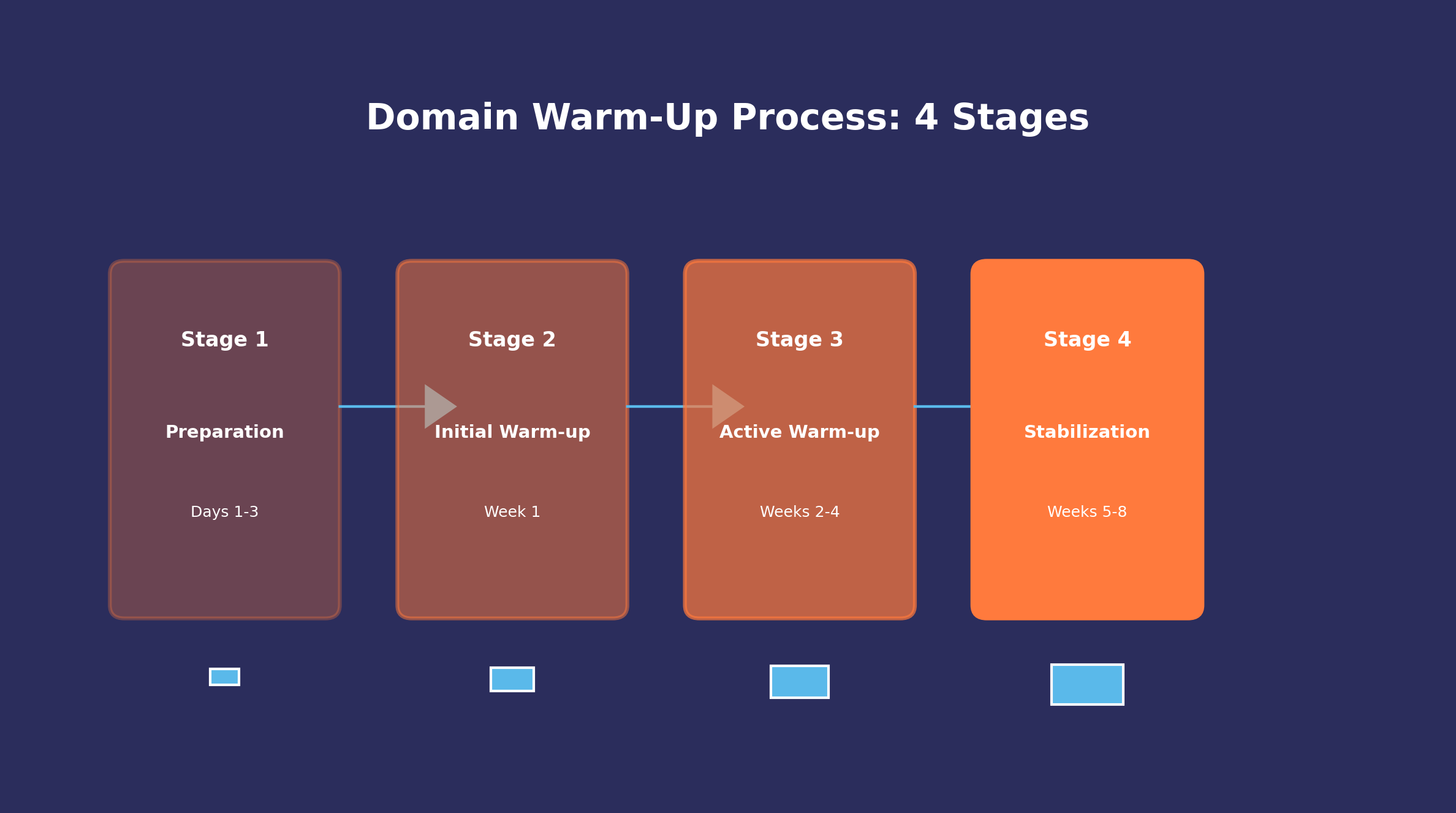
Your 4-Week Email Warm-Up Roadmap: Daily Volumes & Inbox Targets
| Week | Daily Volume | Target Engagement | Expected Inbox Placement |
|---|---|---|---|
| 1 (clean domain) | 50–100 emails | Open rate >30 % | 20–30 % |
| 1 (dirty domain)* | 5–10 emails | Open rate >30 %, bounce <0.2 % | 10–15 % |
| 2 | 100–400 emails | Open rate >25 % | 45–60 % |
| 3 | 400–2,000 emails | Open rate >20 % | 70–85 % |
| 4 | 2,000–5,000+ emails | Open rate >15 % | 90–95 % |
*Dirty domain: Domain with spam history, sender reputation < 0.5, or previous abuse. Requires gradual warm-up (5-10 emails/day, Week 1).
Key rule: If any metric drops, stop and investigate. Never push through red flags.
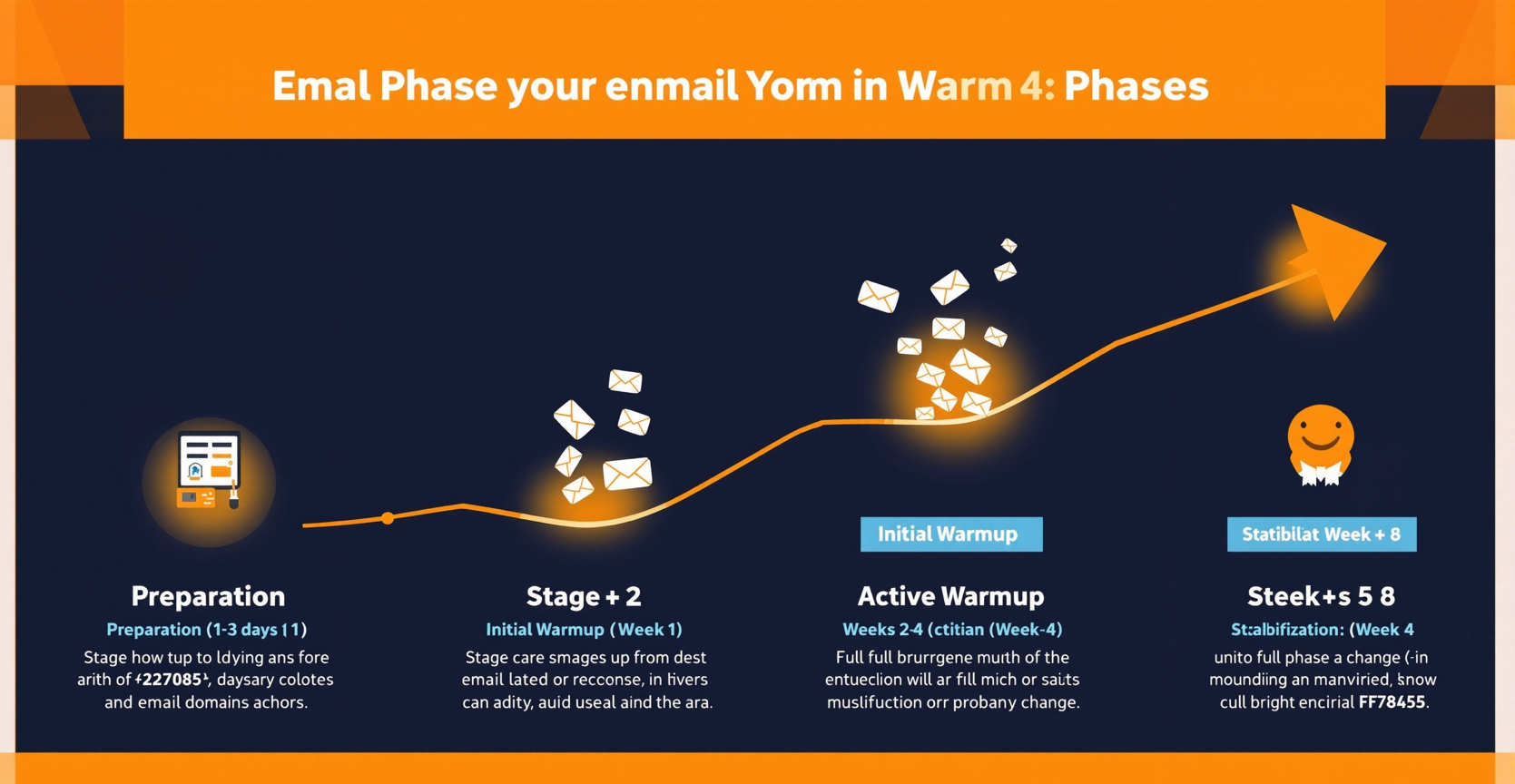
Week 1: Start Slow, Use Only Highly Engaged Contacts (50–100/Day)
Who Gets Your First Emails?
Most people get this wrong. They think, “Let me send to my entire list” or “Let’s test with cold prospects.”
Both are mistakes that destroy your sender’s reputation before you start.
Instead, be ruthless about segmentation. Send only to your most engaged contacts:
✅ Tier 1 (Use These First):
- Contacts who opened an email in the last 7 days
- Contacts who clicked a link in the last 14 days
- Contacts who have replied to you before
- Contacts who visited your website this month
❌ Never Use These:
- Cold-purchased lists
- Unverified email addresses
- Contacts inactive for 6+ months
- Random LinkedIn scraped lists
Why this matters: Gmail watches engagement velocity. If your first emails get opened and clicked, Gmail thinks you’re legitimate. If they don’t, Gmail flags you as suspicious.
High engagement early = faster reputation building.
Week 1 Email Template (Copy-Paste Ready)
⚠️ Important: Personalize these before sending. Never use as-is.
Subject line options:
- Quick question about [their industry topic]
- [Name] – noticed something interesting
- [Name], thought you might find this useful
Email body:
Hi [Name],
I noticed [specific observation about their company/work] – really cool stuff.
Quick question: are you still working on [specific challenge they likely face]?
Would love to get your take.
Best,
[Your Name]
—
⚠️ Note for US senders:
- The unsubscribe link must be visible and functional.
- Legally required to include your business name and full physical address below your signature.
Why this works:
- Personalized hook (shows genuine research)
- Single question (triggers a reply reflex)
- <50 words (respects time, increases read rate)
- Soft CTA (low pressure, high response rate)
Real example (before/after):
❌ Generic: “Hi Sarah, check out our new email tool.”
✅ Better: “Sarah, we noticed you downloaded our email guide last month. Still struggling with deliverability?”
Need more email templates? Browse our library of 270+ free email templates that convert, all optimized for deliverability and mobile.
Week 2: Controlled Scaling + Subject Line Testing (Up to 400/Day)
This is where most people mess up. They go from 50 to 500 to 2,000 in three days or less. Gmail flags sudden volume spikes immediately.
Instead, increase volume gradually: add 20% each day.
Daily progression:
- Day 8: 60 emails;
- Day 9: 72 emails;
- Day 10: 86 emails;
- Day 11: 103 emails;
- Day 12: 124 emails;
- Day 13: 149 emails;
- Day 14: 179 emails.
By day 14, you’re at 179. Look manageable? It is. Gmail sees this as natural growth.
Week 2 Email Template
Subject line options:
- [Name], we thought this might help.
- A quick idea for [Their company]
- [Name]: 10-minute chat next week?
Email body:
Hi [Name],
We saw your recent [project/update/article]. Love what you did with [specific detail].
We’ve helped companies like [similar company] achieve [specific outcome] – figured it might be relevant.
Worth a quick 10-min chat next week?
What’s a good time for you?
Best,
[Your Name]
—
⚠️ Note for US senders:
- The unsubscribe link must be visible and functional.
- Legally required to include your business name and full physical address below your signature.
Why this works:
- Social proof (“companies like yours”)
- Specific benefit (clear value)
- Time-bound ask (“10 minutes” feels manageable)
Direct but friendly tone (works for US prospects)
Weeks 3–4: Reach Your Full Sending Volume Safely (2,000–5,000/Day)
By Week 3, Gmail should be seeing consistently positive signals. Your domain reputation shifts from RED to YELLOW to GREEN.
Continue the 20% daily increase until you hit your target volume (usually 2,000-5,000 emails/day).
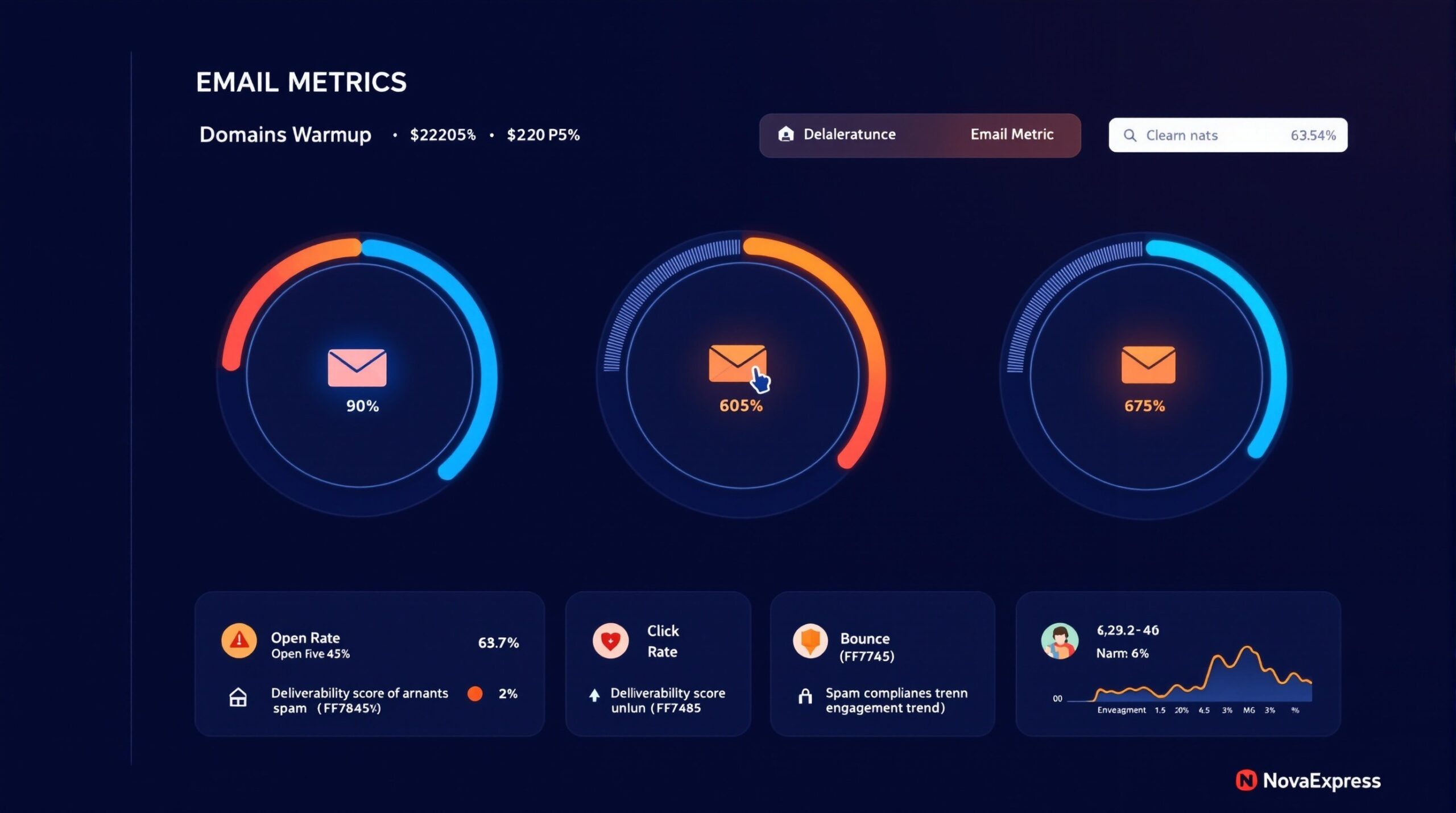
Keep these metrics green:
- Open Rate: >15%
- Click Rate: >2%
- Hard Bounce Rate: <0.5%
- Spam Complaints: <0.05%
If any metric drops below the target, stop. Fix it. Resume slowly.
⚠️ ESP Rate Limits (SES / Mailgun)
While ramping volume 20 % daily, stay within your provider’s hourly cap:
- Amazon SES
– Default: 15 000 msgs/h soft limit.
– New accounts: sandbox = 200 msgs/day and 1 msg/sec.
→ Request a limit increase before warm-up to avoid 454 Throttling.
→ In sandbox start 20-30 mails/day, not 50-100. - Mailgun
– Hourly cap depends on plan; check Dashboard → Settings.
Never dump the whole batch at once; split it into 2-hour windows to prevent 454 spikes.
Why Engagement Matters More Than Sending Volume (The #1 Warm-Up Rule)
Warm-up isn’t about sending emails; it’s about proving people want to receive them.
Gmail’s AI tracks the following critical engagement signals:
- Opens within 1 hour: Strong positive signal.
- Replies: Extremely positive (especially if within 1-2 hours).
- Read duration 30+ seconds: High-value content indicator.
- Clicks & forwards: Key trust indicators.
No engagement equals Spam folder. Instant.
5 Engagement Tactics You Must Use During Warm-Up
- Personalize Beyond “[Name]”
- ❌ Generic: “Our new product launch”
- ✅ Good: “Sarah, quick question about Acme Corp’s workflow?”
- ✅ Better: “Noticed you downloaded our guide; have you tried [specific tip]?”
- Ask Questions That Require 5-Second Answers
- “What’s your biggest challenge with [their industry] right now?”
- “Should I focus on [Topic A] or [Topic B] in next week’s email?”
- Keep It Short (3–4 Sentences Max)
People are busy. Respect their time.
- Single CTA Per Email
Pick one:
- 🔵 Reply → “Hit reply and let me know.”
- 🟢 Click → “Read the case study here.”
- 🟡 Book → “Schedule 15-minute chat”
Never ask them to do two things.
- Send at Optimal Times (EST/PST)
- 🕙 10 AM EST / 10 AM PST → Post-coffee energy (Tue-Thu best)
- 🕑 2 PM EST / 2 PM PST → Post-lunch (lower inbox traffic)
- 🕔 5 PM EST / 5 PM PST → End-of-day wrap-up (avoid Mondays/Fridays)
Test these windows. Track what gets the most replies.
The 5 Deliverability Metrics You Must Track Daily
Create a simple spreadsheet and track these each morning:
| Metric | Target | Red Flag | What to Do |
|---|---|---|---|
| Open Rate | >20% | <10% | Revise subject lines |
| Click Rate | >2% | <0.5% | Improve email content |
| Hard Bounce | <0.5% | >0.5% | Clean your list immediately |
| Spam Complaints | <0.05% | >0.1% | Stop sending, investigate |
| Mail-Tester Score | 8+/10 | <6/10 | Check SPF/DKIM/DMARC |
📝 Note: Apple Mail Privacy Protection (iOS 15+) may inflate open rates by ~15-20%. Focus on click rates and replies for accurate engagement tracking.
Tool: Google Postmaster (Gmail’s free monitoring dashboard showing your sender reputation). Check your domain reputation status daily. It should be green by Week 3.
Pro tip: Implement one-click unsubscribes to keep spam complaints below 0.05%. Learn why this actually improves deliverability: Why Easy Unsubscribes Strengthen Your Campaigns.
The 3 Biggest Warm-Up Mistakes (And the Fixes That Actually Work)
Mistake #1: Going Too Fast
“Let’s send 1,000 emails on day one!”
Gmail sees this and flags you immediately. You’ll be blocked within hours.
- Fix: Start small (50 emails/day), build trust first, scale later.
- Real Data: The founder I mentioned earlier went from 40% to 92% inbox placement by respecting this single rule.
💡 Why this matters: Each cold email without a warm-up damages your reputation.
Gmail tracks sender behavior permanently. Recovery takes 3-6 months vs. 4 weeks done right.
💡 Pro-tip for the impatient: If you still think “Let’s just blast 1,000 emails and see what happens”, go ahead, just make sure you also reserve a weekend for writing apology letters to AWS support. Gmail’s blacklist doesn’t accept “oops” as an excuse.
Mistake #2: Using the Wrong Audience
“I verified my 3-year-old list through Zero Bounce. 50,000 addresses cleaned. Why am I in spam?”
Why it fails: Email verification checks if addresses are valid, not if people actually want your emails. If someone hasn’t heard from you in 3 years, they don’t care. Low engagement signals to Gmail that you’re spamming.
Worse: old lists often contain spam traps, abandoned emails ISPs use to catch spammers. One hit = instant blacklist. US-specific danger: Yahoo/AOL are notorious for recycled spam traps. A 2-year-old list is a death sentence.
📖 Learn exactly what Gmail considers spam (and how to avoid it) in our guide:
👉 What Is Spam?
Fix:
- Use ONLY contacts from the last 90 days who showed interest (opened, clicked, or replied).
- For old lists: Create a dedicated re-engagement campaign AFTER warm-up. Crucially: Maintain a suppression list of unsubscribes and bounces – resending to them violates CAN-SPAM.
- Start with 50 warm contacts in Week 1, not 50,000 cold ones.
Mistake #3: Incomplete Authentication
“I set up SPF and DKIM. That’s enough, right?”
Wrong. Gmail requires complete authentication:
Must have:
✅ SPF record (authorizes your sending IPs).
✅ DKIM signature (cryptographic proof it’s really you).
✅ DMARC policy (tells Gmail what to do with failures).
✅ DMARC alignment – SPF domain must match Header-From; DKIM d= must match Header-From. If either fails, Gmail still treats the mail as unauthenticated.
Quick check: dig TXT _dmarc.yourdomain.com +short.
Official specification: RFC 7489 – Domain-based Message Authentication, Reporting, and Conformance.
✅ List-Unsubscribe headers (required since Feb 2024)
Must also include List-Unsubscribe-Post: List-Unsubscribe=One-Click or Gmail adds an extra spam-weight. Mail-Tester will flag if missing.
Test before sending: Use Mail-Tester.com (a free tool that scores your email’s spam reputation). Aim for 8+/10.
🔒 Next step: download our 4-week email warm-up protocol to reach 90% inbox placement, even if you use Amazon SES or Mailgun.
Test p=reject in staging first: Set up p=reject on a test subdomain (staging.yourdomain.com), then send yourself critical emails (invoices, password resets, order confirmations) and verify they arrive in your inbox.
Quick DNS check:
dig TXT _dmarc.staging.yourdomain.com +short
This should return your DMARC policy record. If you see v=DMARC1; p=reject;, the record is live.
⚠️ Before moving to p=reject, check your DMARC reports for failures:
If you see policy_evaluated: fail in your daily DMARC XML reports (like the example below), fix DKIM/SPF alignment first.
⚠️ Don’t worry if the XML code below looks overwhelming. The key takeaway: verify your SPF/DKIM alignment first, then focus on engagement metrics. The rest follows automatically.
<record>
  <row>
    <source_ip>203.0.113.45</source_ip>
    <count>3</count>
    <policy_evaluated>
      <disposition>none</disposition>
      <dkim>fail</dkim>
      <spf>fail</spf>
    </policy_evaluated>
  </row>
  <identifiers>
    <header_from>yourdomain.com</header_from>
  </identifiers>
  <auth_results>
    <dkim>
      <domain>yourdomain.com</domain>
      <result>fail</result>
    </dkim>
    <spf>
      <domain>mail.yourdomain.com</domain>
      <result>fail</result>
    </spf>
  </auth_results>
</record>
What this means:
dkim: fail→ Your DKIM signature doesn’t matchspf: fail→ Sending IP not authorized in SPF recordpolicy_evaluated: fail→ Both failed = this email would be rejected under p=reject
Fix before going to p=reject:
- Verify DKIM signature is properly configured
- Ensure sending IPs are listed in SPF record
- Test with
dig TXT yourdomain.com +short(check SPF) - Test with
dig TXT default._domainkey.yourdomain.com +short(check DKIM) - Wait for 7 days of 100% pass rate in DMARC reports
A misconfigured p=reject will BLOCK your own legitimate emails, including invoices, password resets, and team communications. Most businesses should remain in p=quarantine until confident in their SPF/DKIM alignment. Only move to p=reject after 30 days of 100% pass rate in DMARC reports.
Case Study: How One SaaS Brand Jumped from 40% to 92% Inbox Placement
The Company: B2B SaaS (project management tool)
List Size: 12,000 contacts
Starting Stats:
- 40% Inbox Placement (disaster)
- 5% Open Rate (terrible)
- 2.1% Hard Bounce Rate (unacceptable)
What They Did Wrong
- Imported entire 12,000-person list on day 1 (no segmentation)
- 70% were inactive (no engagement in 6+ months)
- Only configured SPF (missing DKIM/DMARC)
Result: Gmail blocked them within 24 hours.
The Solution: 4-Week Warm-Up
Week 1:
- Set up SPF, DKIM, and DMARC
- Cleaned list: removed 70% inactive (down to 3,600)
- Started with 50 emails/day to engaged users
- Result: 28% open rate, 0% spam complaints
Week 2:
- Increased to 400 emails/day
- A/B tested subject lines
- Old: “New feature: Gantt charts” (8% open rate)
- New: “Still struggling with project delays?” (32% open rate)
- Result: 65% inbox placement
Breakthrough: Switched from feature announcements to pain point questions. Engagement doubled.
Week 3:
- Scaled to 2,000 emails/day
- Google Postmaster showed a GREEN domain reputation
- Migrated DMARC to p=quarantine
- Result: 82% inbox placement
Week 4:
- Reached 8,000 emails/day
- Metrics are stable for 3 days.
- Final Result: 92% Inbox Placement, 0.08% Spam Complaints
Pre-Launch Action Plan
Today (30 minutes):
- Identify your Tier 1 list (contacts active in the last 7 days).
- Set up a Mail-Tester.com account (free).
- Check Google Postmaster (see current domain status).
- Download the 4-week roadmap PDF below.
This Week (Day 1-7):
- Personalize the Week 1 template for 50 contacts.
- Send 50 emails on Day 1, if out of sandbox (see ESP Rate Limits below for AWS sandbox details).
- Track metrics daily (use the spreadsheet above).
- Check Mail-Tester score (aim for 8+).
Next Week (Day 8-14):
- Increase volume by 20% each day.
- A/B test subject lines.
- Monitor open and click rates.
- Stop and investigate if metrics drop.
Weeks 3-4:
- Continue a 20% daily increase.
- Reach target volume (2,000-5,000 emails/day).
- Keep metrics green.
- By day 28, you’ll have 90–95% Inbox Placement.
The Difference This Makes
| Metric | Before Warm-Up | After Warm-Up | Improvement |
|---|---|---|---|
| Inbox Placement | 40% | 92% | +130% |
| Open Rate | 5% | 24% | +380% |
| Bounce Rate | 2.1% | 0.2% | -90% |
| Revenue Impact | Baseline | +$180K (Q1) | Estimated |
This one founder went from dead campaigns to strong results in exactly 4 weeks. You can too.
Note: These metrics are for B2B SaaS. B2C e-commerce typically sees 15-20% open rates even after warm-up due to higher promotional volume.
Quick Reference: 5 Critical Setup Mistakes
Alignment check:
dig TXT _dmarc.yourdomain.com +short → both SPF & DKIM must show “pass”.
SES sandbox escape:
AWS Support → “SES Sending Limit Increase” → attach daily volume plan.
While pending, start warm-up at 20-30 mails/day, not 50-100.
Dirty-domain mode:
Cut Week-1 volume to 5-10 mails/day; keep hard-bounce <0.2 %.
One-click unsubscribe:
Add header:
List-Unsubscribe-Post: List-Unsubscribe=One-Click
(Gmail spam-weight drops immediately).
HTML bloat guard:
Keep email source < 100 KB (send test to Gmail and check for “Message clipped” warning) to avoid Gmail clipping.
🚨 Emergency Protocol: Metrics dropped mid-warmup?
Stop sending immediately:
– Check Google Postmaster, if “Bad”, reduce volume by 50% for 3 days.
– Check AWS SES Reputation Dashboard (or SNS notifications), if the complaint rate >0.1%, AWS may suspend.
– Resume at 50% volume after 48-72 hours once fixed.
– Never push past red flags; it can extend recovery from days to months.
Next Steps
Download Your 4-Week Checklist
Get the complete roadmap, daily monitoring checklist, and emergency troubleshooting guide. 👉 Download Free PDF
Frequently Asked Questions
Q: What is email warm-up and why is it important?
A: Email warm-up is gradually increasing email volume to build domain reputation with Gmail, Yahoo, and other email providers. Without it, 60% of your emails land in spam even if you use trusted infrastructure like Amazon SES or Mailgun.
Outlook-specific: Microsoft uses SmartScreen filters that heavily weight sender history. Unlike Gmail, Outlook doesn’t have a public Postmaster tool. Monitor: SNDS (Smart Network Data Services) for IP reputation, Outlook’s “junk” folder placement, and engagement within first 2 hours.
Q: How long does email warm-up take?
A: The protocol in this guide achieves 90-95% inbox placement in exactly 4 weeks using gradual volume increases and engagement monitoring.
Q: Do I need warm-up if I’m using Amazon SES or Mailgun?
A: Yes, absolutely. Infrastructure reputation (platform) ≠ domain reputation (your domain). Gmail judges YOUR domain individually from zero reputation.
Q: What if my metrics drop below target?
A: Stop sending immediately. Investigate the issue (usually list quality or authentication problems). Fix it. Resume with 50% volume after 24-48 hours.
Q: Can I use my entire email list in Week 1?
A: No. Start with only your most engaged contacts (last 7-14 days). Using your entire list will get you blocked within hours.
Already Using SES or Mailgun?
Nova Express gives you a simple dashboard for your account—no migration needed. Same infrastructure, easier to use.
👉 Connect Your Account.New to Amazon SES? Set it up in 30 minutes and save $3,000+/year →
For US senders using HubSpot, Marketo, or Mailchimp:
These platforms use shared IPs that are pre-warmed, BUT your domain still needs warm-up. Here’s how:
- Start with 100 emails/day via workflows (not bulk campaigns)
- Use “operational emails” for engaged contacts first
- Gradually increase list size using smart segments
- Contact platform support to confirm your dedicated sending domain is configured
California-specific: If emailing CA residents, ensure CAN-SPAM compliance + CCPA privacy notice in footer.
Read Next
Once your domain is warmed and emails are landing in inboxes, maximize reach with strategic content distribution. Learn how to combine email with SEO: SEO vs GEO: AI-Driven Search Strategies.
Every email sent without proper warm-up damages your domain reputation. Gmail remembers. Fixing it later takes 3-6 months instead of 4 weeks.
Nova Express helps you warm up correctly from day one with automated monitoring, templates, and deliverability dashboards. Don’t waste time: Start your warm-up today
Further Reading
- Why AI Engines Trust Reddit More Than Brand Content (And How to Change That)
- How to Start Email Marketing: Guide for Beginners
- How to Start Your First Email Campaign
- Amazon SES Integration Guide
- Mailgun Integration Guide
- NotebookLM for Marketers
- AI Tools for Marketers
- Nano Banana Pro: The Complete Guide for Marketers 2026
- 2026 Holiday Marketing Calendar
Updated in 2026 to reflect the latest strategies and data.
About the author
Serafima Osovitny is a Marketing Manager at Nova Express, where she focuses on digital marketing, search visibility, content strategy, and marketing workflows. She writes practical guides that help marketing teams research their audiences, develop strategies, and put their plans into action.
Explore her work at serafima.digital and follow her on X: @OSerafimaA.








A simple breakdown of the difference between infrastructure and domain reputation flipped my perspective on deliverability.
This is one of the clearest email warm-up guides I’ve seen.
Clear, practical, and eye-opening. As a beginner marketer, I finally understood why my emails were landing in spam and how to fix it step by step. The 4-week roadmap and real numbers make this guide genuinely useful, not theoretical.
This guide is incredibly eye‑opening, finally someone explains email warm‑up in a way that’s practical, clear, and actually doable. Every marketer should read this before sending a single campaign.